
Playing a video is easy. Playing it at exactly the moment the backing track starts, with the lights changing on the cut, every night, is where laptops and media players fall short. Rocket Show plays video as part of a show: the video belongs to a cue together with its audio, MIDI and lighting, and they all start together.
In short: each composition (one cue, usually one song) can hold one video. It plays full screen on the HDMI output, up to 4K on SPARK, starting with the audio, MIDI and lighting of that composition. Jump to a position and everything jumps along.
How it works
A composition holds the files that start together: any number of audio and MIDI files and at most one video. Add the video with Add → Media file, upload it or pick it from the media library, and save. When the composition plays, the video fills the screen connected to the HDMI output; when it ends, the screen goes black until the next video.
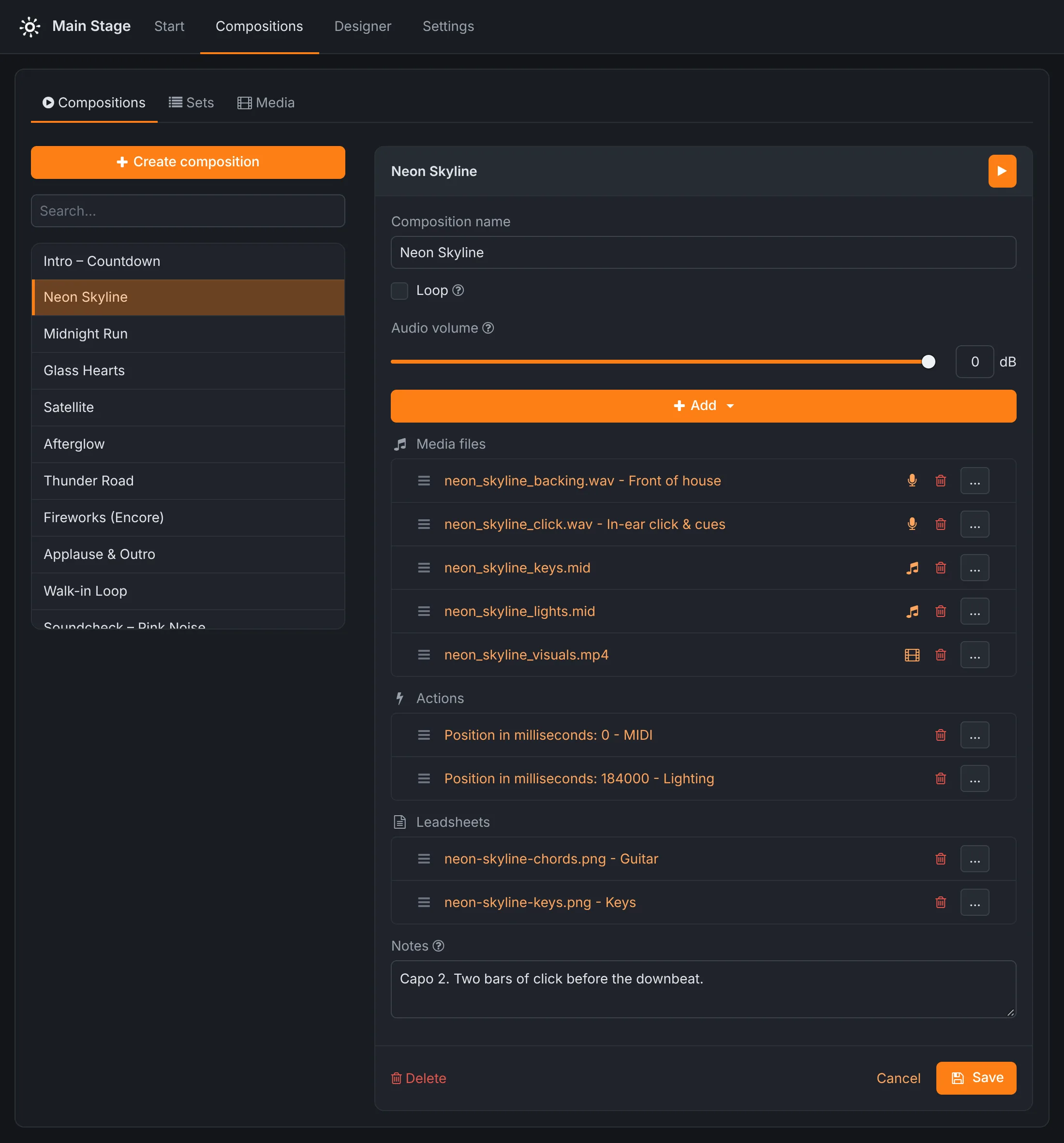
Because everything shares one timeline, the position slider on the Start screen moves the picture, the sound and the lights together. The lights in the lighting designer are placed on the waveform of the same song, so a flash on the cut in the video stays on the cut.
Per-file settings
The video's settings in the composition decide how it behaves within the cue:
- Delay
- Start the video this many milliseconds after the composition. A video that comes in on the first chorus does not need two minutes of black at its start.
- Loop
- Repeat the video until the composition ends: a ten-second background loop under a five-minute song.
- Deactivate
- Keep the video in the composition but skip it, for a venue without a screen.
The composition itself can loop as well. A looping composition with a video and a soundtrack plays all day, which is what an installation or a waiting-room screen needs.
Lining up picture and sound
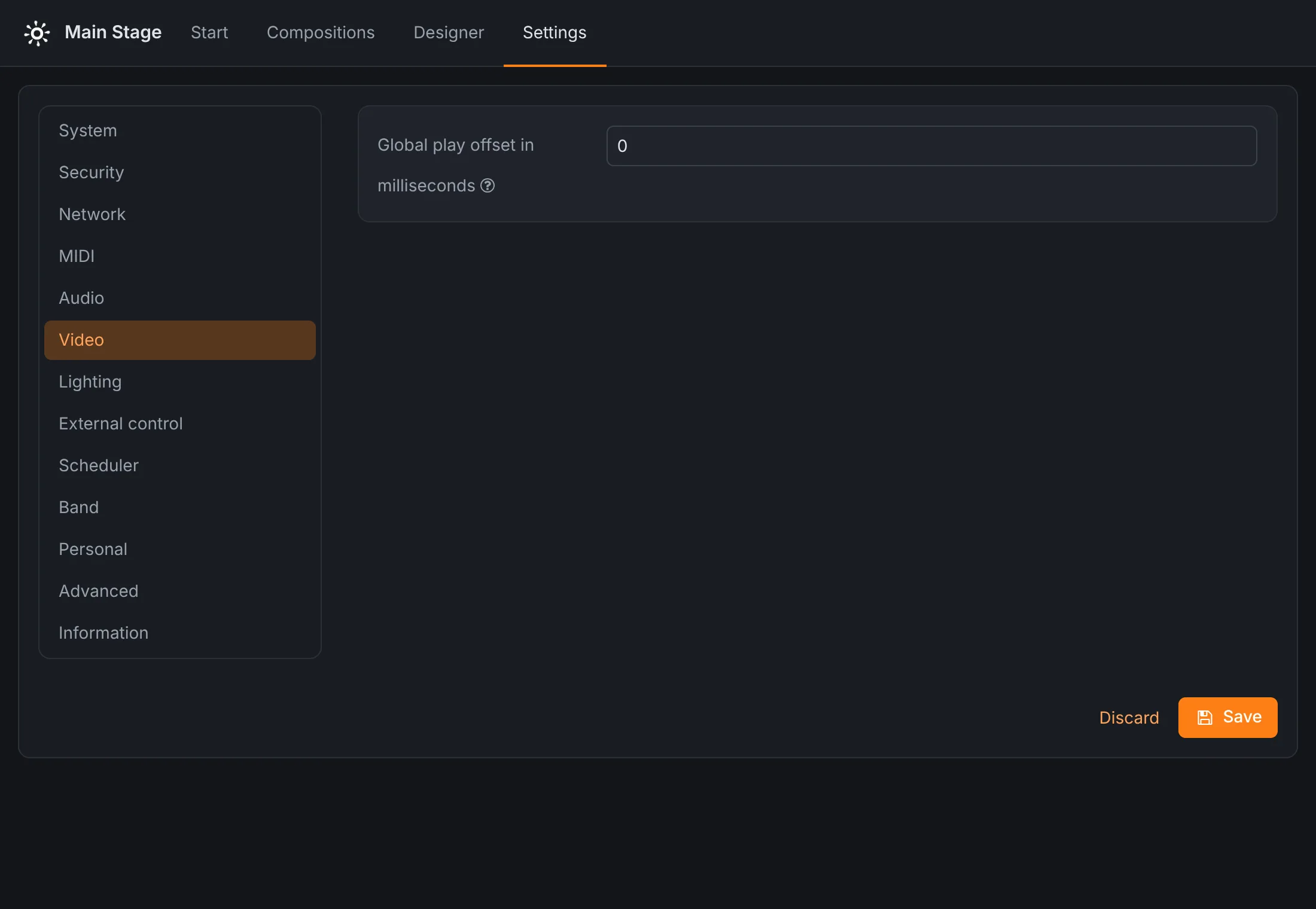
Projectors and large screens process the picture before they show it, and that takes time: often a frame or two, sometimes more. The result is a picture slightly behind the sound. Under Settings → Video, a global play offset in milliseconds shifts the video against everything else. Audio and MIDI have offsets of their own, so the outputs can be lined up with each other whatever the screen or the PA adds.
Formats and resolution
Rocket Show plays MP4, MOV, M4V, MKV, AVI and MPEG files. Which codec is inside matters more than the container:
- H.264 in an MP4, encoded at the resolution of your screen, is the dependable choice for full HD. It can be paused and scrubbed like the audio.
- H.265 (HEVC) is the choice for 4K. The BCM2712 processor of SPARK and the Raspberry Pi 5 decodes it in hardware. The hardware decoder cannot pause or jump, though: a composition with an H.265 video plays from the start through to its end, and a loop starts it again from the top.
Encode at the resolution of your screen, so nothing has to be scaled while the show runs. Any video tool can do the conversion; HandBrake and ffmpeg are free.
Starting video without anyone pressing play
Not every video is started by a person on stage:
- The default composition starts when the device starts and whenever nothing else plays. Make it a looping logo, a standby picture or the walk-in video, and the screen is never empty.
- The scheduler starts compositions at a time of day, on chosen weekdays or at an interval. See installations.
- Buttons and sensors on the digital inputs, MIDI notes and HTTP requests start a composition by name. See escape rooms for an example.
Where it is used
- Bands put a video on the LED wall behind the drummer, cut to the backing track. See backing tracks.
- Theatres run projections as cues, from the setlist or from a cue grid on a tablet.
- Museums and exhibitions loop a film all day, with the room light changing along with it.
- Escape rooms play a clue on a screen the moment a puzzle is solved.
What it runs on
Rocket Show SPARK has an HDMI output up to 4K on board, next to its audio, DMX and MIDI connections. The free Community Edition uses the HDMI output of your Raspberry Pi 5. The settings are explained in detail in the documentation.
Questions
- Which video format should I use?
- An H.264 MP4 at the resolution of your screen is the most reliable choice, and it can be paused and scrubbed. For 4K, use H.265 (HEVC), which the BCM2712 processor of SPARK and the Raspberry Pi 5 decodes in hardware; it plays straight through, without pause or jumping. MOV, M4V, MKV, AVI and MPEG files play as well.
- Can I show a still image?
- Not as an image file. Render the picture as a short MP4 and set it to loop: it stays on screen for as long as the composition runs. When no video plays, the screen is black.
- Can one device drive two screens?
- One device plays one video, full screen on its HDMI output. For a second screen, add a second unit and let the first one control it. The two exchange commands over the network rather than sharing a clock, so anything that must be frame-accurate to the sound belongs on the same unit.
- Does the video start by itself when the device is switched on?
- Yes, if you make its composition the default composition. It starts when the device starts and whenever nothing else is playing; with loop switched on, it runs until someone starts something else.