
A Raspberry Pi makes a good DMX controller for a show that has to run the same way every time: a band's light show, a theatre's cues, a shop window or an installation. It is small, silent, cheap and starts without a keyboard. What it lacks is the software to talk DMX and to program a show. Rocket Show brings both. This guide covers the hardware, the setup and the first light.
In short: install the free Rocket Show Community Edition on a Raspberry Pi 5, connect a USB DMX interface (or use Art-Net or sACN over the network), switch on the matching plugin under Settings → Lighting, and patch a universe. Then design the show in the built-in lighting designer and play it with the music.
What you need
- A Raspberry Pi 5 with at least 2 GB of memory, the official power supply, a case and a micro SD card (class 10 or faster).
- A DMX interface: a USB DMX interface, or an Art-Net or sACN node on the network. See the table below.
- DMX fixtures and cables. Most interfaces have a 5-pin output and most fixtures 3-pin inputs; an adapter cable connects them.
- For music and video, a USB sound card; video plays on the Pi's HDMI output.
- A laptop, tablet or phone with a browser to set it all up. Nothing is installed on it.
1. Install Rocket Show
- Request the Community Edition image on the products page; the download link arrives by mail.
- Write it to the card with the Raspberry Pi Imager (“Choose OS” → “Use custom”).
- Connect the USB DMX interface and the sound card, insert the card and power the Pi up. The first start takes a few minutes.
- Join the Wi-Fi network Rocket Show the Pi opens, or connect it to your router with a cable, and open
http://rocketshow.local. A short wizard asks for the language, a name and a password.
The documentation has every step, including the sound card setup.
2. Pick the DMX interface and its plugin
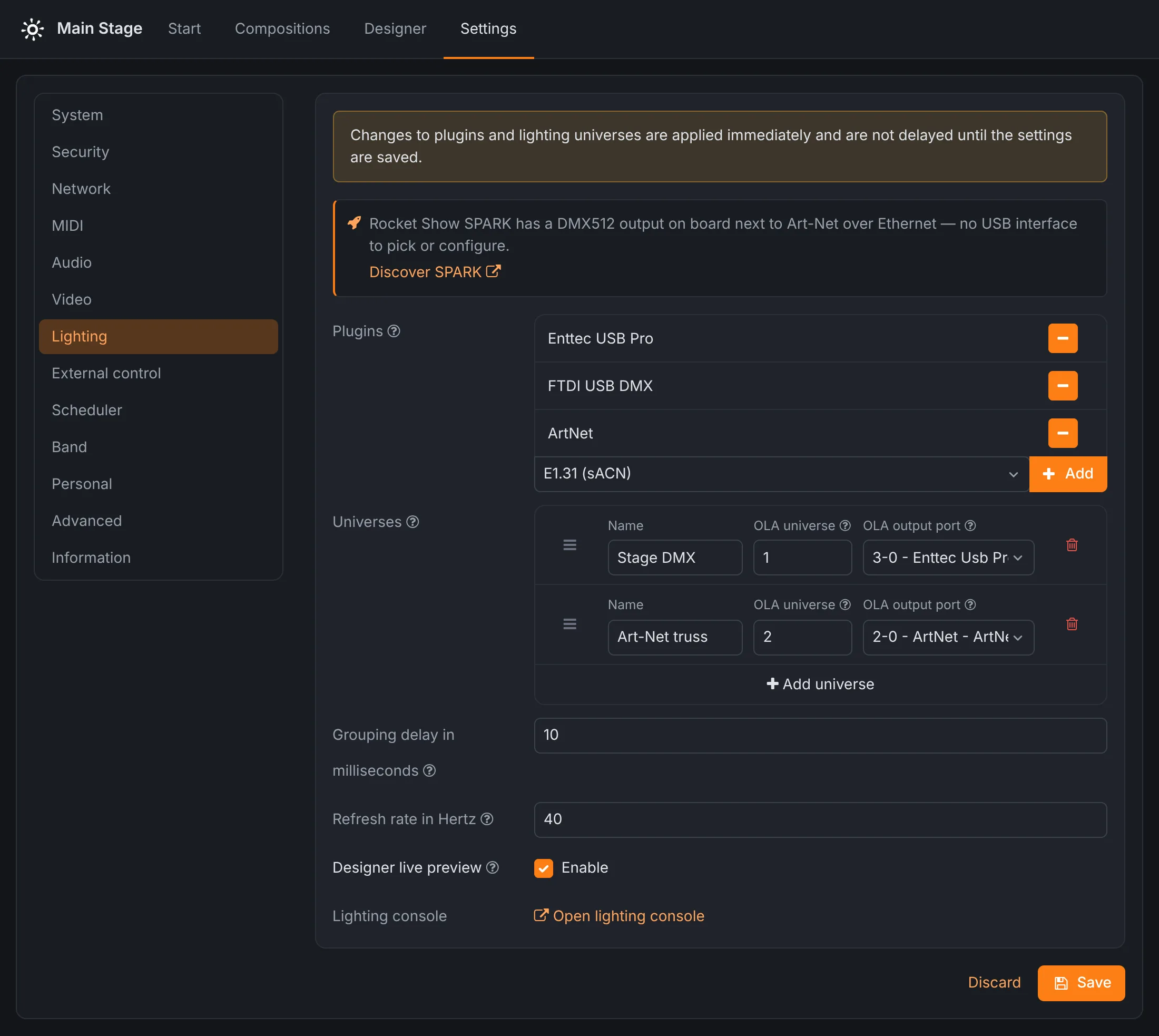
Rocket Show talks DMX through the Open Lighting Architecture (OLA), which supports most interfaces through plugins. Some plugins claim the same devices, so only the right one may be active. Under Settings → Lighting → Plugins, Rocket Show lists the active plugins, marks the ones that conflict with each other, and lets you add or remove them. Changes apply at once.
| Interface | Plugin | Notes |
|---|---|---|
| Enttec DMX USB Pro, and interfaces compatible with it | Enttec USB Pro | Works without changes. The safe choice. |
| Enttec Open DMX USB, generic FTDI-based USB DMX cables | FTDI USB DMX | Switch FTDI USB DMX on and the plugins that grab the same chip off: Enttec Open DMX, StageProfi and Serial USB. |
| DMXking ultraDMX Max | Enttec USB Pro | Works once OLA is told to look at ttyACM devices: on the Pi's command line, add device_prefix = ttyACM to /etc/ola/ola-usbserial.conf and restart. |
| Art-Net nodes | ArtNet | No USB needed: the DMX travels over the network cable to the node. |
| sACN (E1.31) nodes | E1.31 (sACN) | Like Art-Net, over the network. |
The USB interfaces in this table were tested on a Raspberry Pi 5 by a member of the community; the details are in the community setup guide. Plug the interface in before the Pi starts; if one plugged in later does not show up, restart the Pi.
3. Patch a universe
A universe is one line of 512 DMX channels. Under the plugins, add one, give it a name (that is how the rest of Rocket Show refers to it) and choose its output port: your USB interface, or an Art-Net or sACN universe. Add a second universe for a second line, for example a USB interface for the stage and Art-Net for a truss further away.
To check that DMX is really leaving the Pi, open the lighting console from the same page (port 9090). Its DMX console has faders for 16 channels at a time: set your fixture to address 1 and move the first faders. If the light reacts, the interface is set up.
4. Program the show
A DMX controller is only as good as what you can program on it. Rocket Show has three ways, from simple to complete:
- The lighting designer, built in. Add your fixtures from the Open Fixture Library, build looks from colours, dimmers, positions and effects, combine them into scenes and draw the scenes on the waveform of the song. A 3D preview shows the result before a single fixture is connected.
- Lighting actions set channels to fixed values at a moment in a song: the house lights off at the start, a blackout at the end.
- MIDI to DMX turns notes from a MIDI file into channel values, for light changes programmed in a DAW. See MIDI show control.
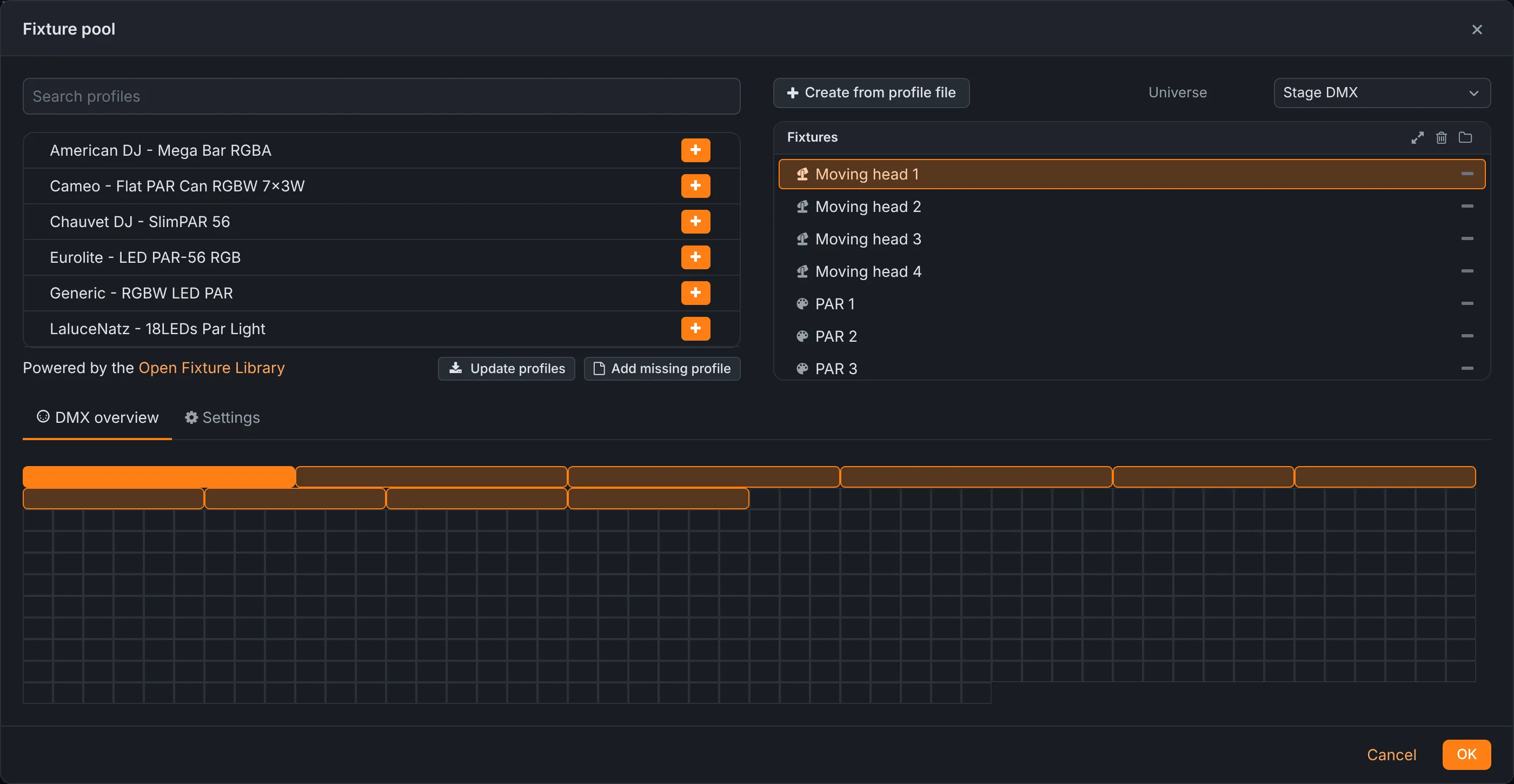
Whatever you program plays back with the composition (the song or cue) it belongs to, in sync with its audio, video and MIDI. While programming, Designer live preview sends what you select straight to the real fixtures.
Or skip the setup
Rocket Show SPARK is the same software on hardware built for it: a 3-pin DMX512 output and Art-Net on board, next to two stereo audio outputs, HDMI up to 4K, MIDI In and Out and digital inputs and outputs. No plugins to choose and no adapter cable: patch a universe and plug the fixtures in. If tinkering is half the fun, start with the Pi; if it has to work on show night, the box saves the evening.
Questions
- Which Raspberry Pi do I need?
- A Raspberry Pi 5 with at least 2 GB of memory. New Rocket Show images are built for the current model only.
- Which USB DMX interface should I buy?
- An Enttec DMX USB Pro or a compatible "USB Pro" interface is the safest choice: it is picked up without any changes. Cheaper FTDI-based interfaces such as the Enttec Open DMX USB work too, after switching the FTDI USB DMX plugin on and the three plugins that conflict with it off.
- How many DMX universes can I control?
- As many as you set up: each universe is one line of 512 channels, sent to a USB interface, an Art-Net node or sACN. One USB interface usually drives one universe; Art-Net and sACN carry several over a network cable.
- Do my fixtures need a 5-pin or a 3-pin cable?
- Many interfaces, the Enttec ones among them, have a 5-pin DMX output, while most stage fixtures have 3-pin inputs. An adapter cable connects the two. SPARK's DMX output is 3-pin.
- Does the Raspberry Pi need internet access?
- Not to run the show. Only fetching the latest fixture profiles in the lighting designer needs internet access; everything else works offline.