
Rocket Show, from first boot to the last cue
Every screen and every setting of Rocket Show and Rocket Show SPARK, explained with the show it was built for: a band on tour, its backing tracks, click, video, lights and lead sheets.
How Rocket Show works
Rocket Show plays your show. It runs on a small box at the side of the stage and starts audio, video, DMX lighting and MIDI together, at the same moment and on the same timeline, every night. You set it up and run it from a web browser: a laptop while you build the show, a phone or a tablet on stage. There is no software to install on any of them.
Everything on this page is taken from the same demo show: a band called Main Stage on its Summer Tour 2026, with backing tracks, an in-ear click, keyboard MIDI, a lighting rig and lead sheets for the guitarist and the keyboard player.
SPARK and Community Edition
Rocket Show comes two ways, with the same show engine, the same editor and the same lighting designer inside:
- Rocket Show SPARK is the ready-to-run device: two stereo outputs, DMX512, MIDI In/Out and digital inputs and outputs on board, set up and tested before it ships. It adds over-the-air updates, backup and restore, a factory reset, HTTPS and a maintenance mode.
- The Community Edition is free and open source. You install it on your own Raspberry Pi 5 and add a USB sound card, a USB DMX interface and a USB MIDI interface as you need them.
Where a feature exists on one edition only, it is marked: SPARK means SPARK, Community Edition means the Community Edition. Everything else works the same on both.
The building blocks
- Composition
- One cue of the show, usually one song. It bundles the media files that play together (audio, video, MIDI), the actions that fire at set positions, lead sheets and notes. More
- Set
- An ordered list of compositions: a setlist, a running order, an act. You load one set at a time on the Start screen. More
- Media library
- All files uploaded to the device. A file is uploaded once and can be used in any number of compositions. More
- Audio bus
- A named output of your audio interface, for example Front of house and In-ear click & cues. Each audio file plays through one bus. More
- Universe
- One line of up to 512 DMX channels, sent out through DMX512, a USB interface or Art-Net. More
- Designer project
- Your lighting show, built in the lighting designer from fixtures, presets and scenes and laid out on the timeline of a composition. More
- Remote device
- Another Rocket Show unit that this one controls, for instance a second box backstage that plays the video wall. More
Getting started
Connecting to the device
Rocket Show is operated from a browser. There are two ways to reach it:
- Over its own wireless network. After the first boot the device opens a Wi-Fi network called Rocket Show (on SPARK followed by four characters of the serial number, e.g. Rocket Show 7A3F). Join it with your laptop, tablet or phone and open
http://rocketshow.localorhttp://192.168.4.1. Some phones warn that the network has no internet access: stay connected, that is expected. - Over your own network. Plug the device into your router or switch with a network cable and open
http://rocketshow.local. If your computer cannot resolve that name, use the IP address your router assigned to the device.
The first start-up after flashing or unpacking can take a few minutes before the web interface answers. A current Chrome, Edge, Firefox or Safari works; so does the browser on any reasonably recent phone or tablet.
If HTTPS is switched on (Security), use https:// instead. The device uses its own certificate, so the browser warns the first time; choose “Advanced” and continue to the site. That confirmation is needed once per browser.
The setup wizard
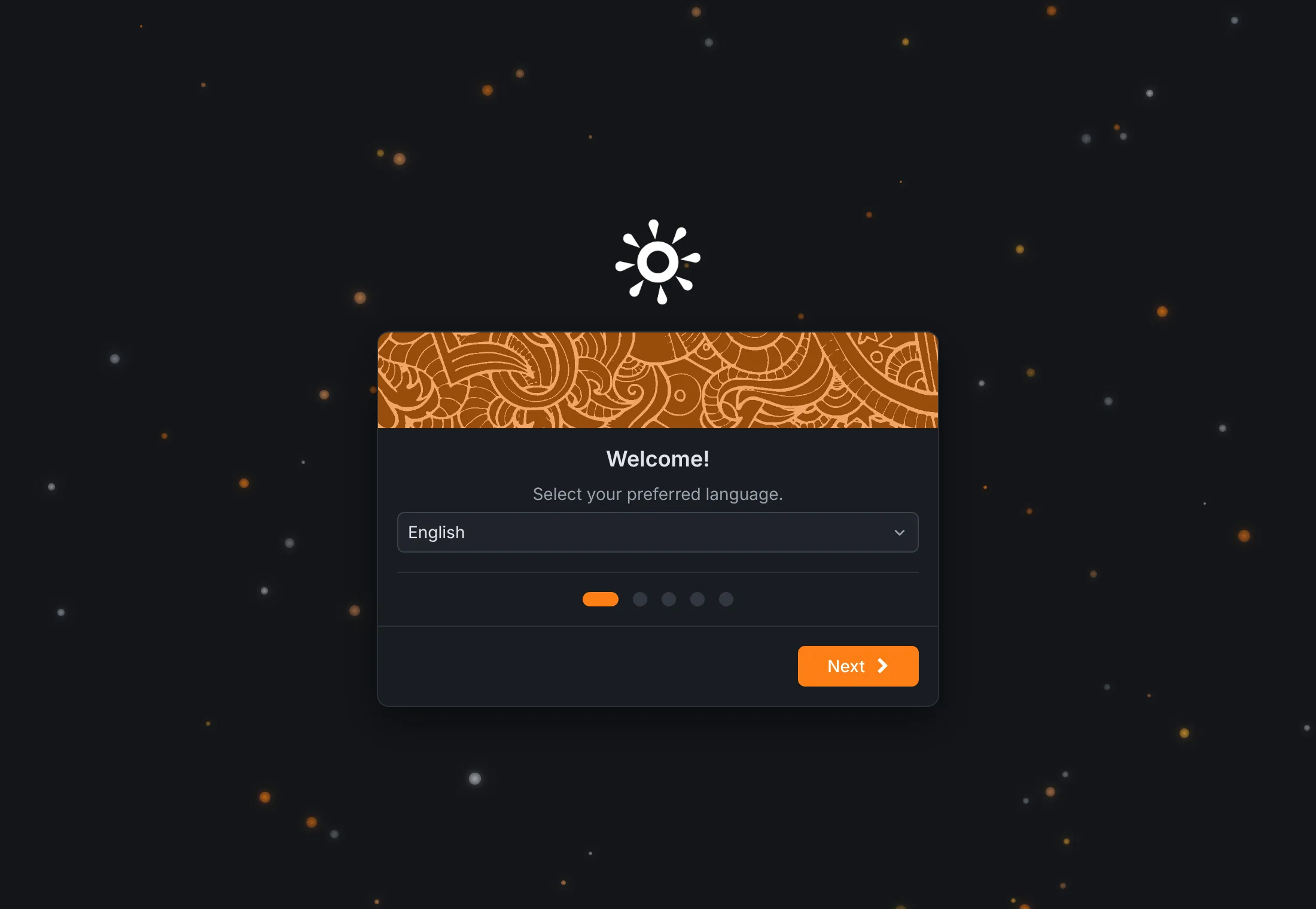
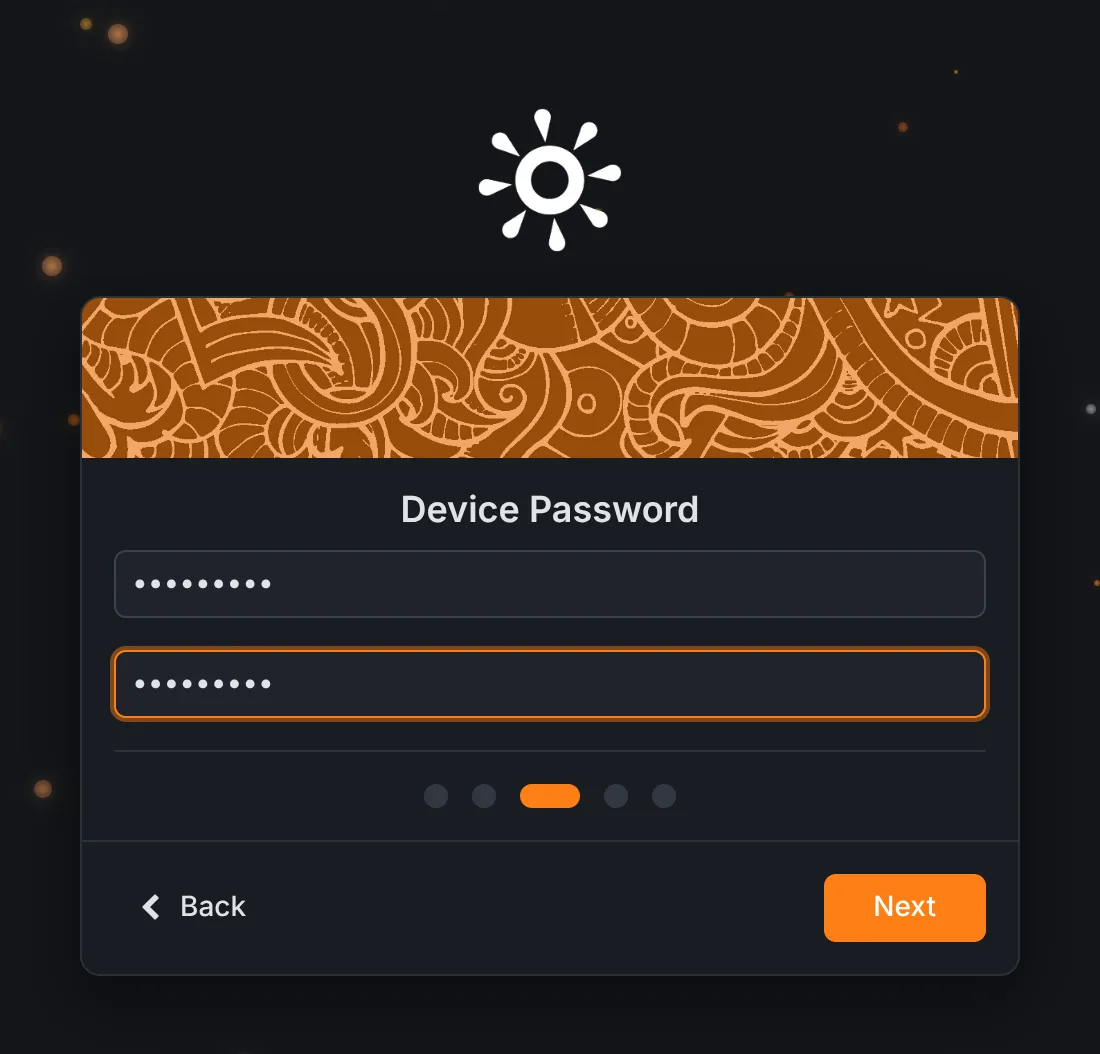
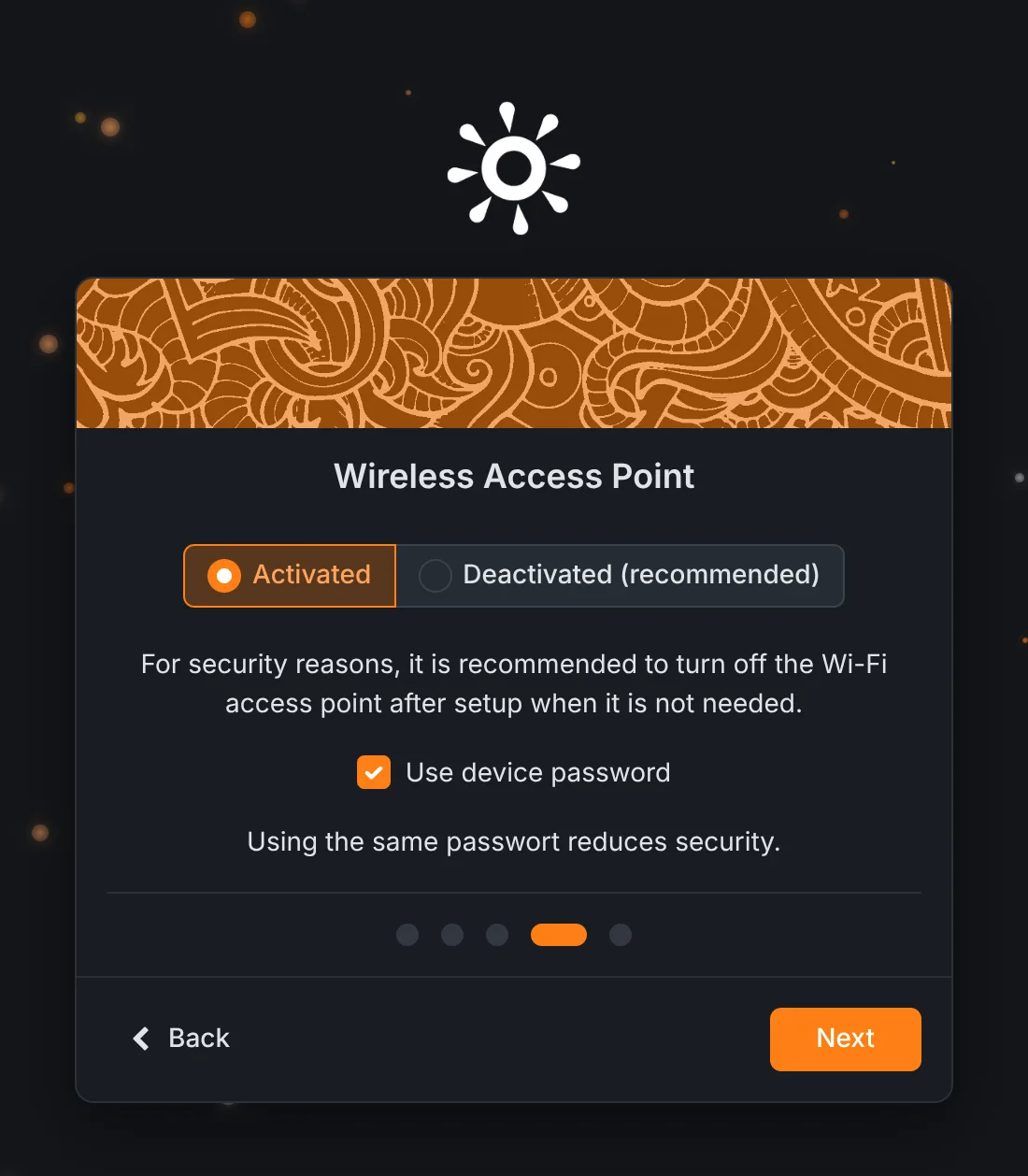
The first time you open a new or reset device, a short wizard asks for the basics. Use Next and Back or the dots below the card to move between the steps.
- Language: the language of the interface. English, German, Spanish, French, Italian, Portuguese and Chinese are available. You can change it later under Settings → System.
- Device name: shown in the menu bar and the browser tab. Give every unit its own name if you run more than one.
- Device password: at least six characters, entered twice. It protects the whole interface.
- Wireless access point: keep the device's own Wi-Fi network on or switch it off. Switching it off is recommended when you do not need it. If you keep it, it can use the device password or a password of its own.
- Secure connection SPARK: serve the interface over HTTPS (recommended).
Press Finish and the device opens the Start screen.
Logging in
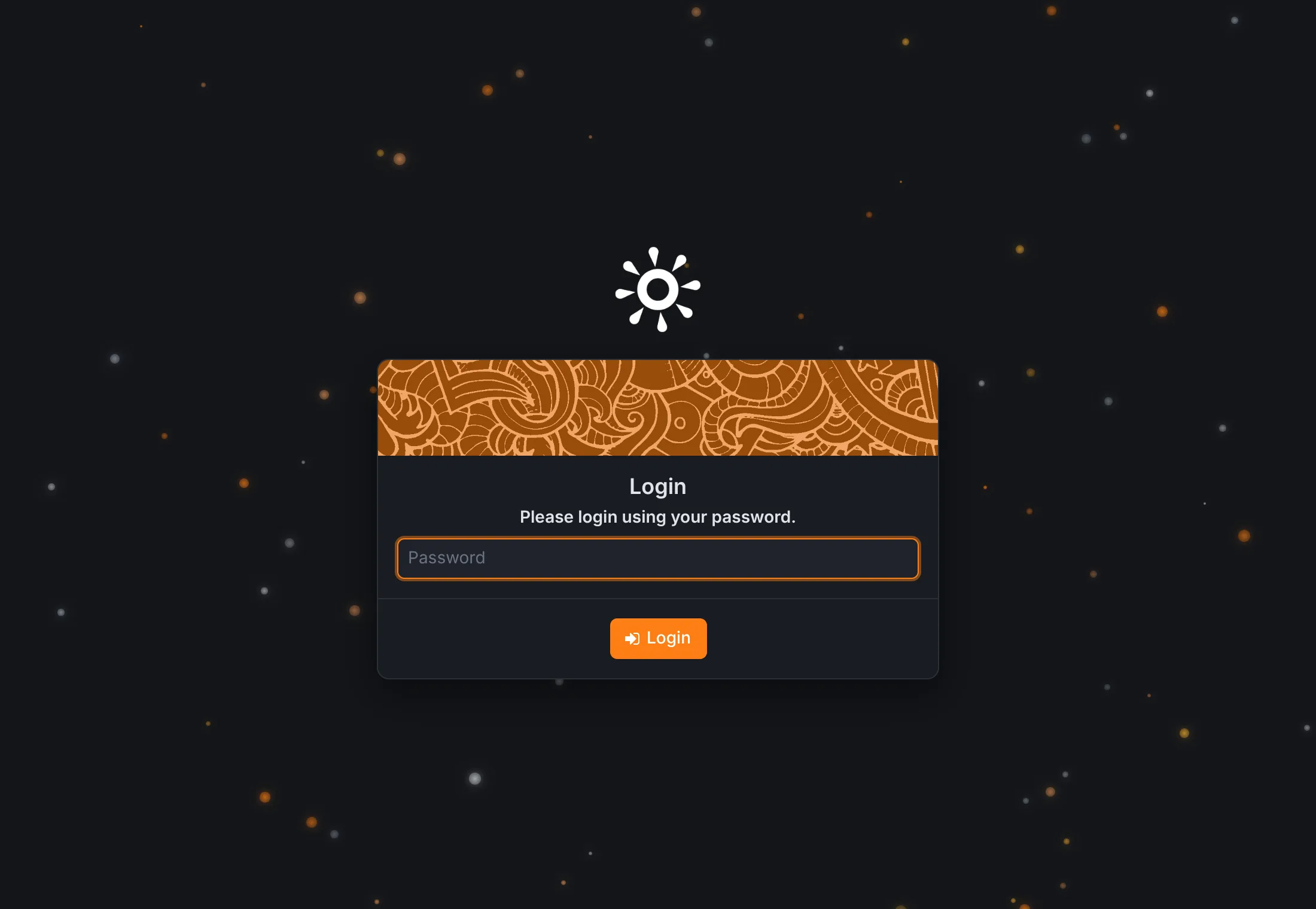
Every browser has to log in once with the device password. The session lasts until you log out (Settings → Security → Logout) or the browser forgets it. Other systems that control the device, such as a second Rocket Show unit, use API keys instead of the password.
Installing the Community Edition Community Edition
- Get a Raspberry Pi 5 with at least 2 GB of memory, a micro SD card (class 10 or better), a case and the official power supply.
- Request the image on the products page; the download link arrives by mail.
- Write it to the card with the Raspberry Pi Imager (“Choose OS” → “Use custom”).
- Connect a USB sound card, put the card in, power the Pi up, and connect to it.
- Choose your sound card under Settings → Audio, save, and reboot.
A DMX interface on USB needs the matching OLA plugin, see Lighting.
Your first show in ten minutes
- Check the audio outputs under Settings → Audio: one audio bus per output you want to feed.
- Open Compositions, press Create composition, give it the song's name, then Add → Media file and upload your backing track. Pick the audio bus and press OK, then Save.
- Repeat for the other songs. Add a click track on its own bus, a video, or a MIDI file for your keyboard as you go.
- On the Sets tab, create a set, move the songs into it in running order and save.
- Go to Start, choose the set, select the first song and press play.
Every new device also comes with an Example Composition that plays a short audio track, a click and a video, so you can test the outputs before uploading anything.
The Start screen
The Start screen is where the show is run. It shows the loaded set, the selected composition, the transport and what the device is sending right now. Everything you do here happens on the device itself, so every browser connected to it sees the same state at the same time.
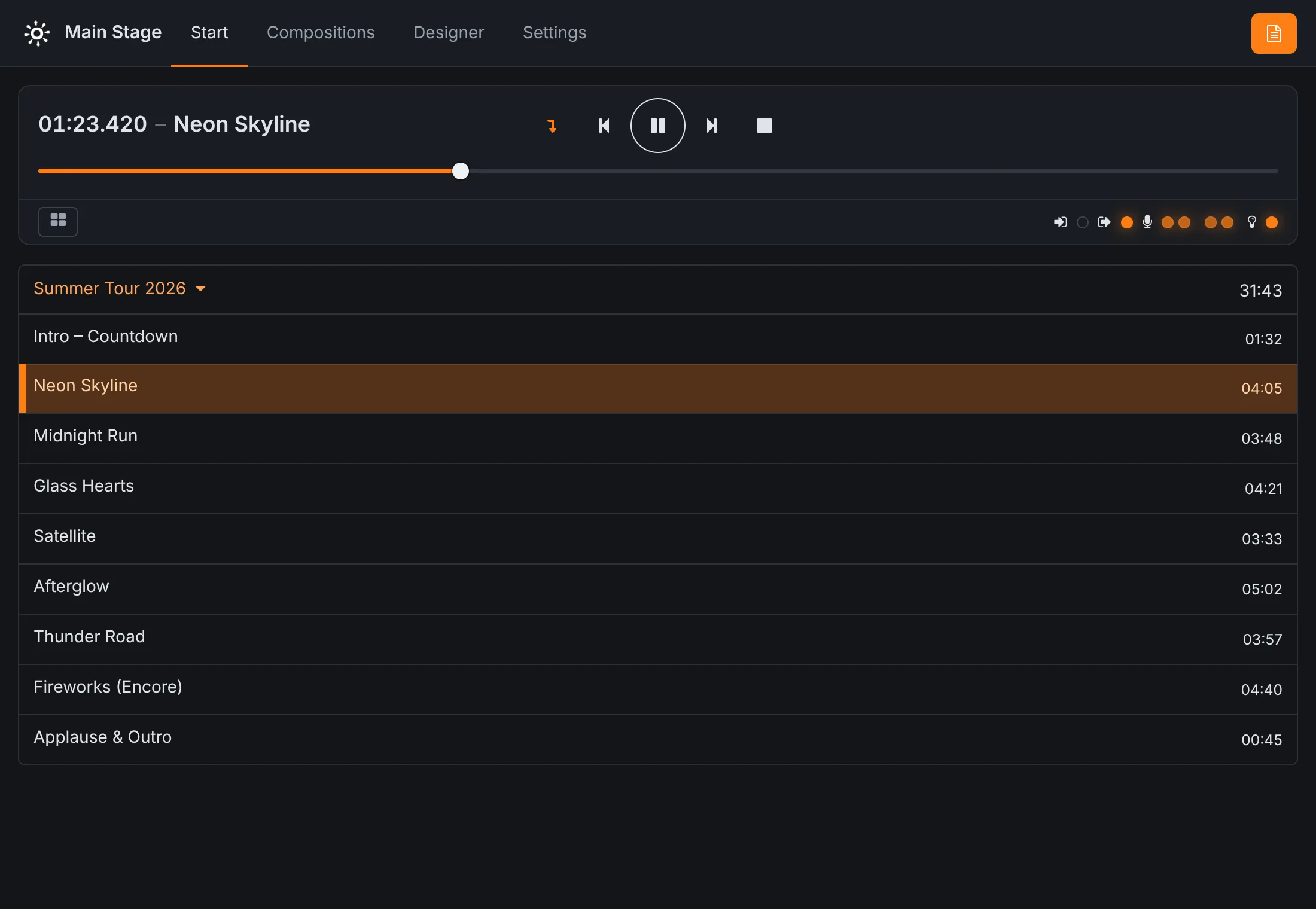
Transport
- Position and name
- The running time of the current composition and its name.
- Auto-select next ↴
- When it is on (highlighted), the next composition of the set is selected as soon as the current one finishes. If that composition is marked to start the next one automatically in the set, the next one also starts playing at once, without a gap.
- Previous / Next
- Select the previous or next composition of the set.
- Play / Pause
- Start or pause the selected composition. A spinning icon means the device is loading the files.
- Stop
- Stop and return to the start. If a default composition is set, it starts playing again in the background.
- Position slider
- Drag it to jump to any position. Audio, video, MIDI and lighting jump together.
Clicking a composition in the list selects it. The total running time of the set is shown at the top right of the list.
Activity indicators
Below the transport, small lights show what the device is doing: MIDI coming in, MIDI going out, the level of every channel of every audio bus, and lighting data being sent. They are a quick way to see that a cue is really leaving the box. They need monitoring to be enabled.
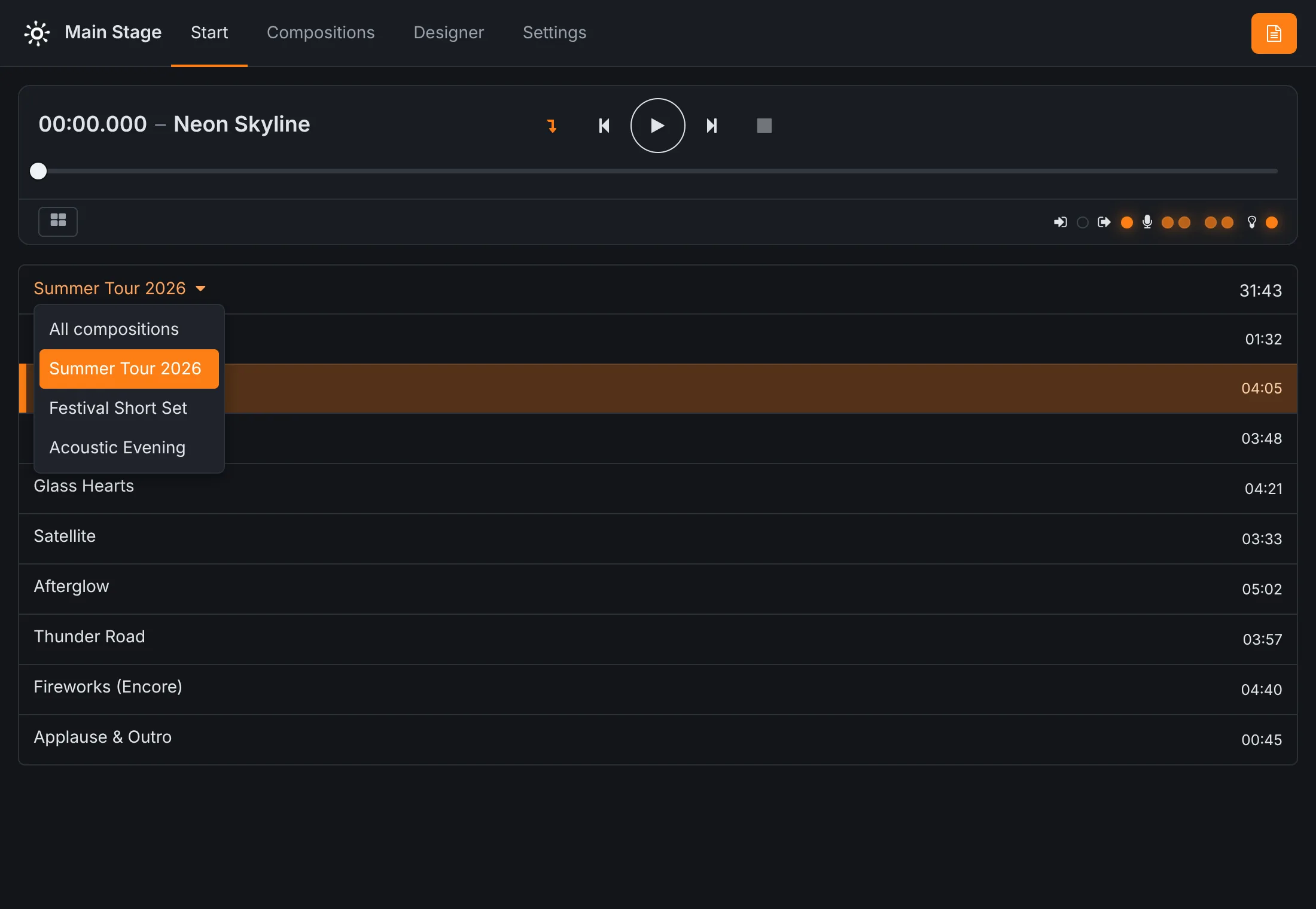
Choosing a set
The name above the list opens the sets. All compositions lists every composition on the device in alphabetical order; any other entry loads that set in its saved order.
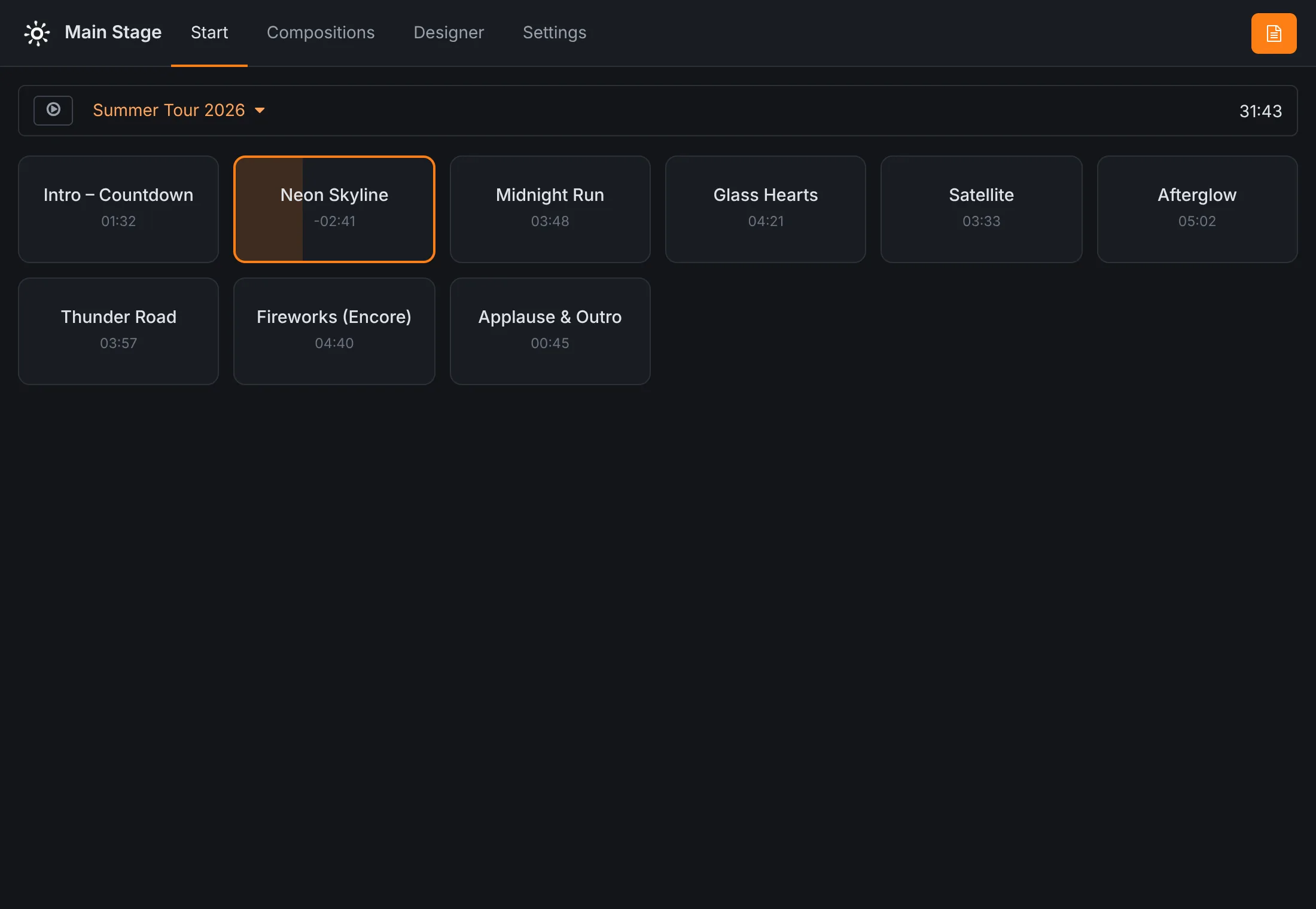
The cue grid
The button at the bottom left of the transport switches to the cue grid. Every composition becomes a large button: tap it to start it, tap the playing one to stop it. The running cue fills up as it plays and counts down its remaining time; a loop symbol marks compositions that repeat. The grid suits theatre, attractions and anything that is not played in a fixed order. The button at the top left switches back to the setlist. The device remembers which view you used.
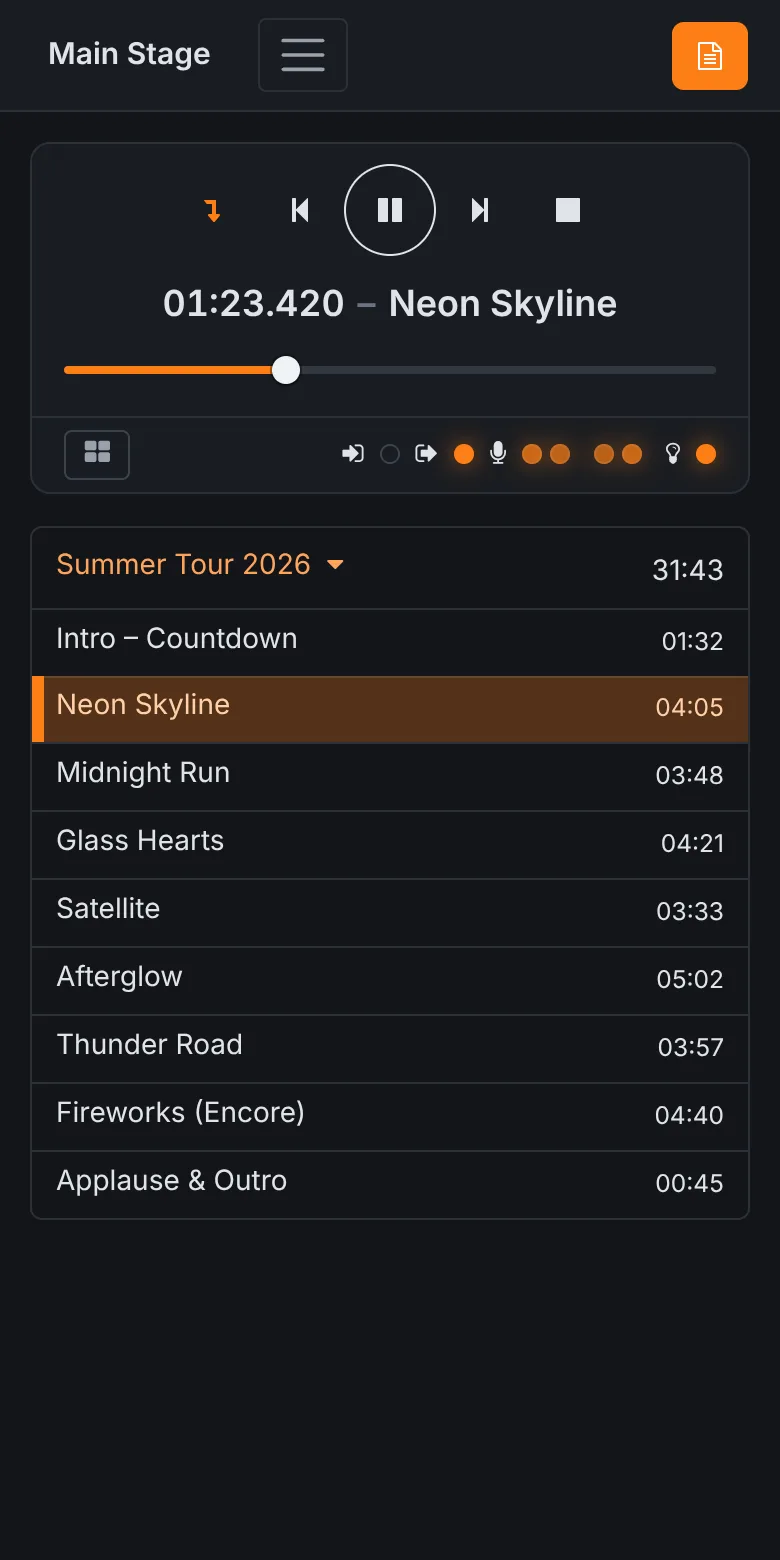
Phones and tablets
The whole interface adapts to small screens. On a phone, the menu folds into the menu button next to the device name and the transport sits above the set list. Several phones and tablets can be connected at once; they all show the same state.
Lead sheets on stage
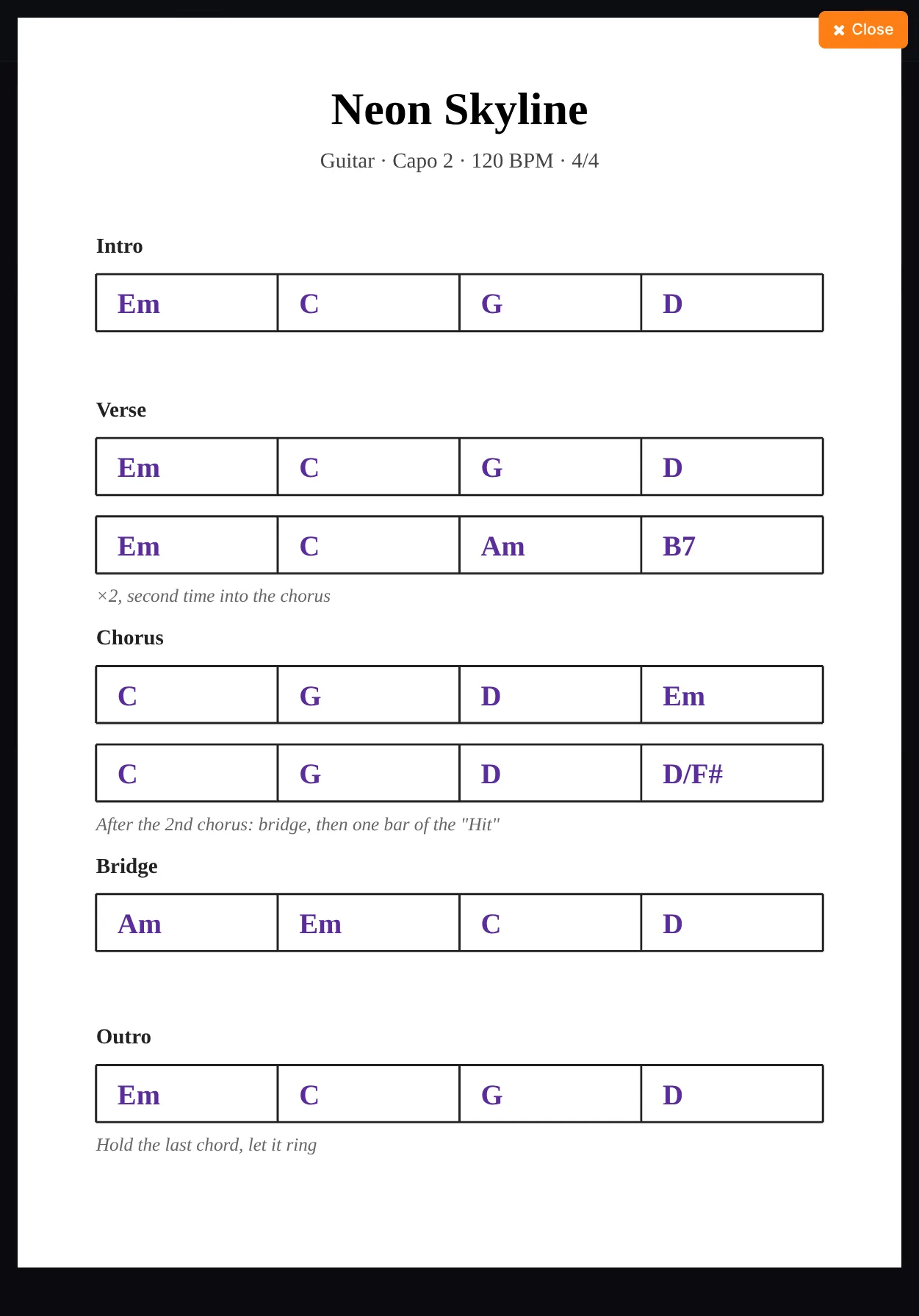
When the selected composition has a lead sheet for the instrument chosen on this browser (Settings → Personal), a sheet button appears at the top right of the Start screen. It opens the sheet full screen; Close brings you back. The guitarist's tablet shows the guitar chart, the keyboard player's shows theirs, and both follow the show as it moves on.
Compositions
A composition is one cue: everything that has to start together. Open Compositions in the menu. The tabs at the top switch between compositions, sets and the media library.
The composition editor
The list on the left holds every composition, with a search field above it. Create composition starts a new one; clicking an existing one opens it on the right.
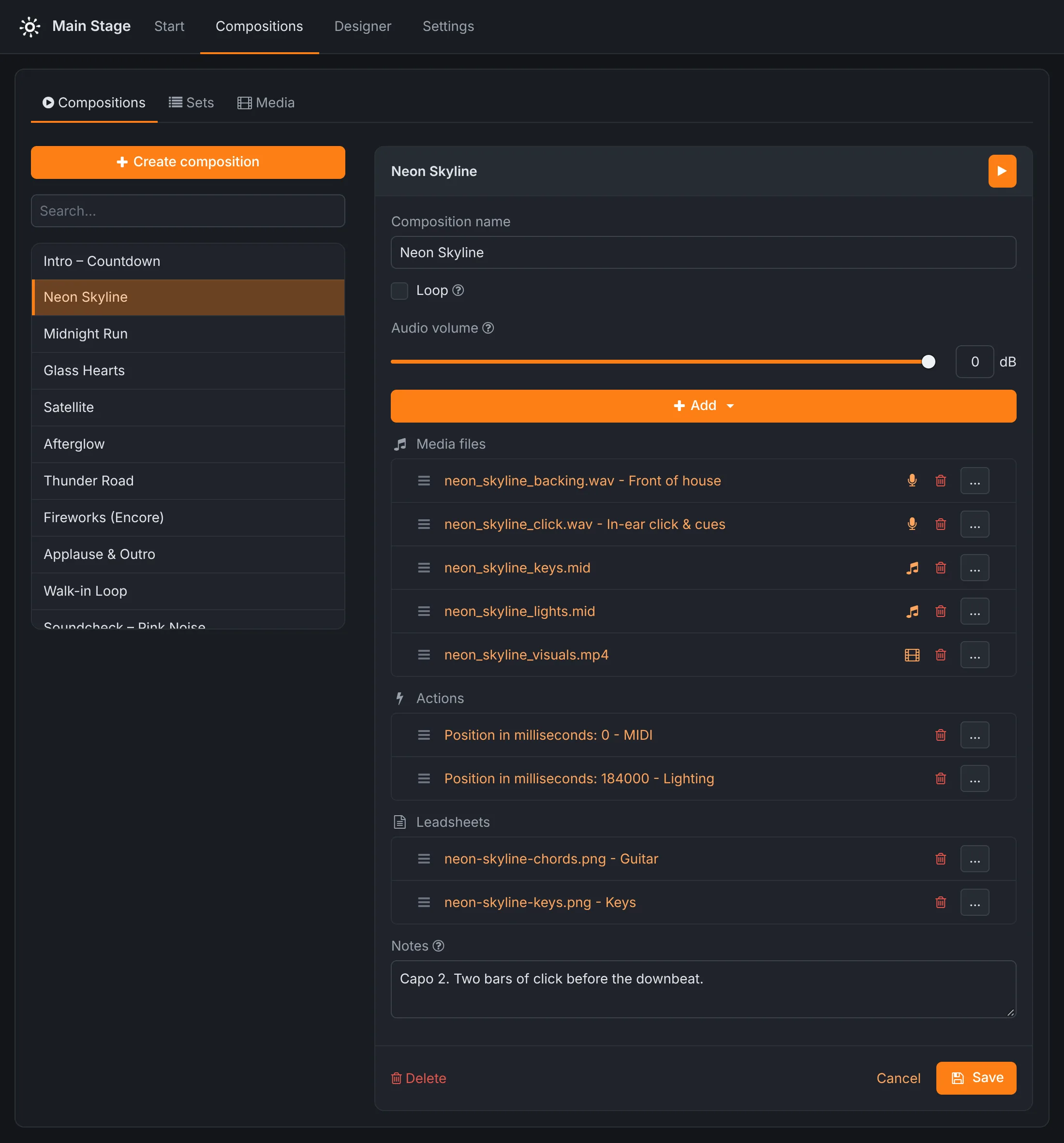
- Composition name
- Up to 50 characters. The name is how sets, actions, the scheduler, remote devices and the lighting designer refer to the composition, so renaming one means updating those too.
- Loop
- Start again from the beginning when the end is reached. Use it for walk-in music, a standby look or an installation that runs all day.
- Audio volume
- The overall level of all audio files in the composition, in dB (0 dB is full level). Each file has its own level as well.
- Add
- Adds a media file, an action or a lead sheet.
- Notes
- Free text for yourself: capo, count-in, who starts. Notes are only shown here.
The play button in the header test-plays the composition as it is on screen, saved or not. It does not touch the show on the Start screen. While it plays, a slider lets you jump through it and the stop button ends it.
Save stores the composition, Cancel closes it without saving, and Delete removes it from the device (its media files stay in the library). If you leave the page with unsaved changes, Rocket Show asks first.
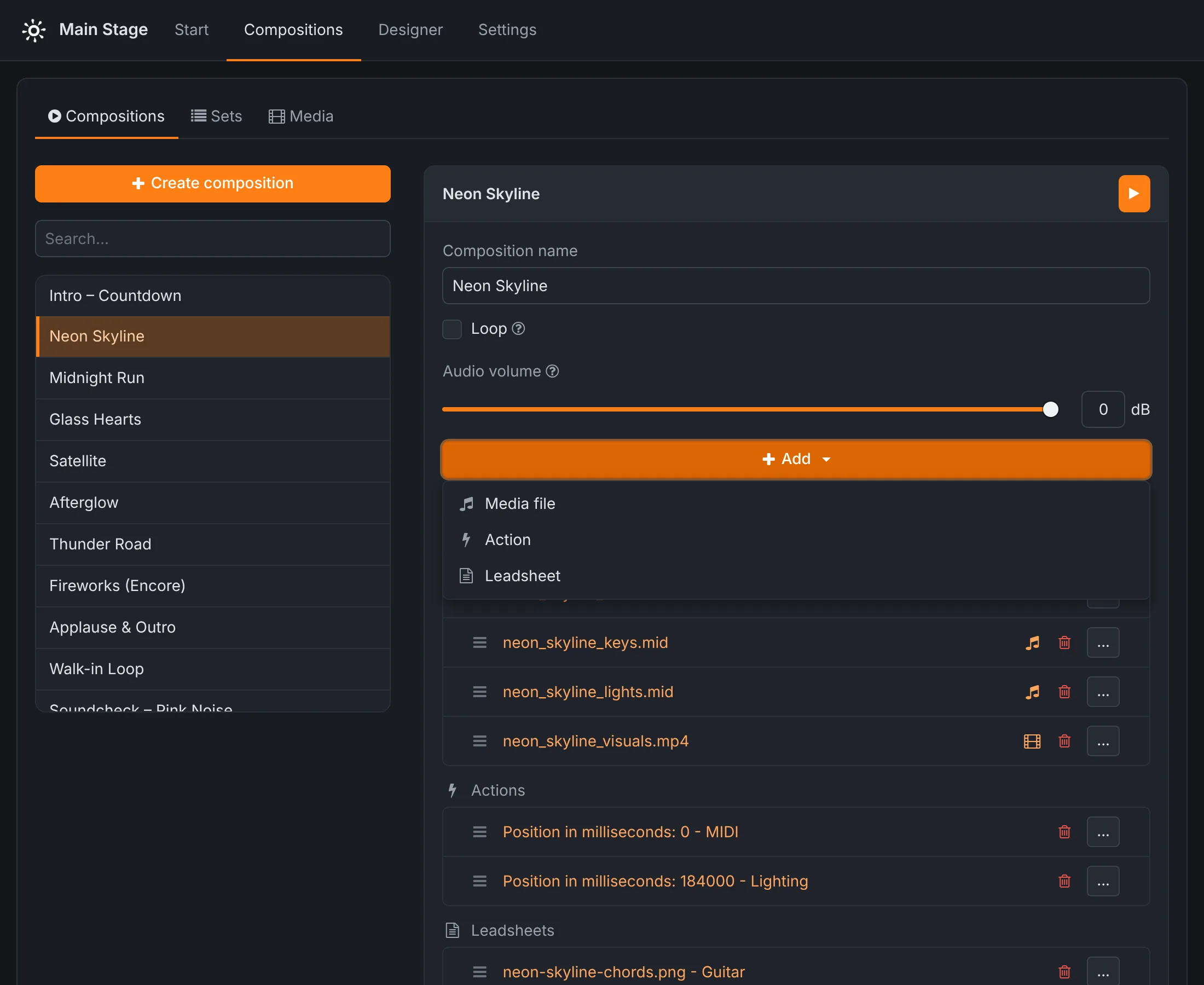
Media files
A composition holds any number of audio and MIDI files and at most one video. They all start together when the composition starts, unless a file is given a delay. In the list:
- drag a file by its handle (☰) to reorder,
- click the type icon to deactivate a file: it stays in the composition but is skipped, which is handy for a click track you only want in rehearsal,
- the bin removes the file from the composition (not from the library),
- the … button opens its settings.
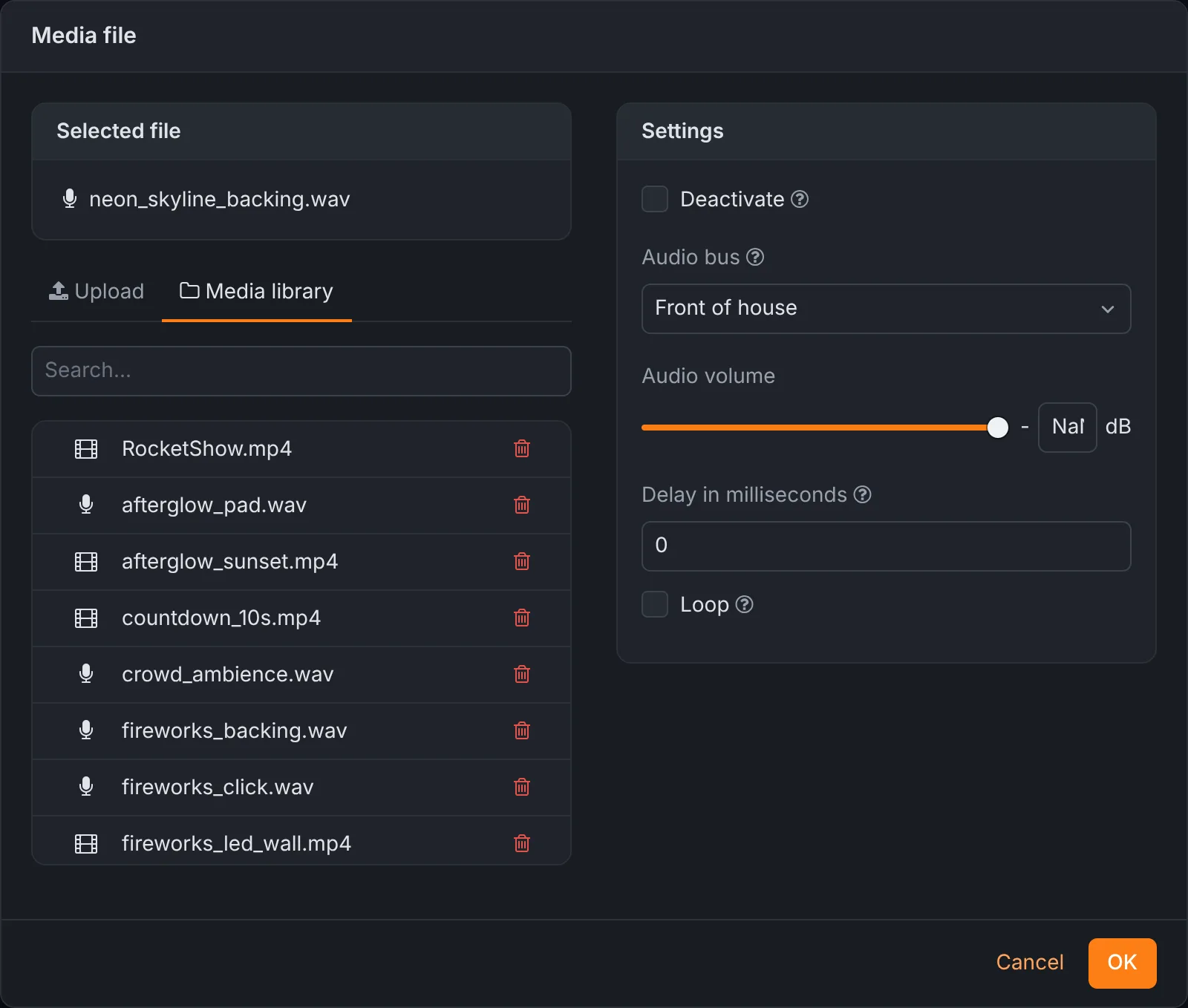
Audio files show the bus they play through, e.g. neon_skyline_click.wav - In-ear click & cues. See supported formats.
File settings
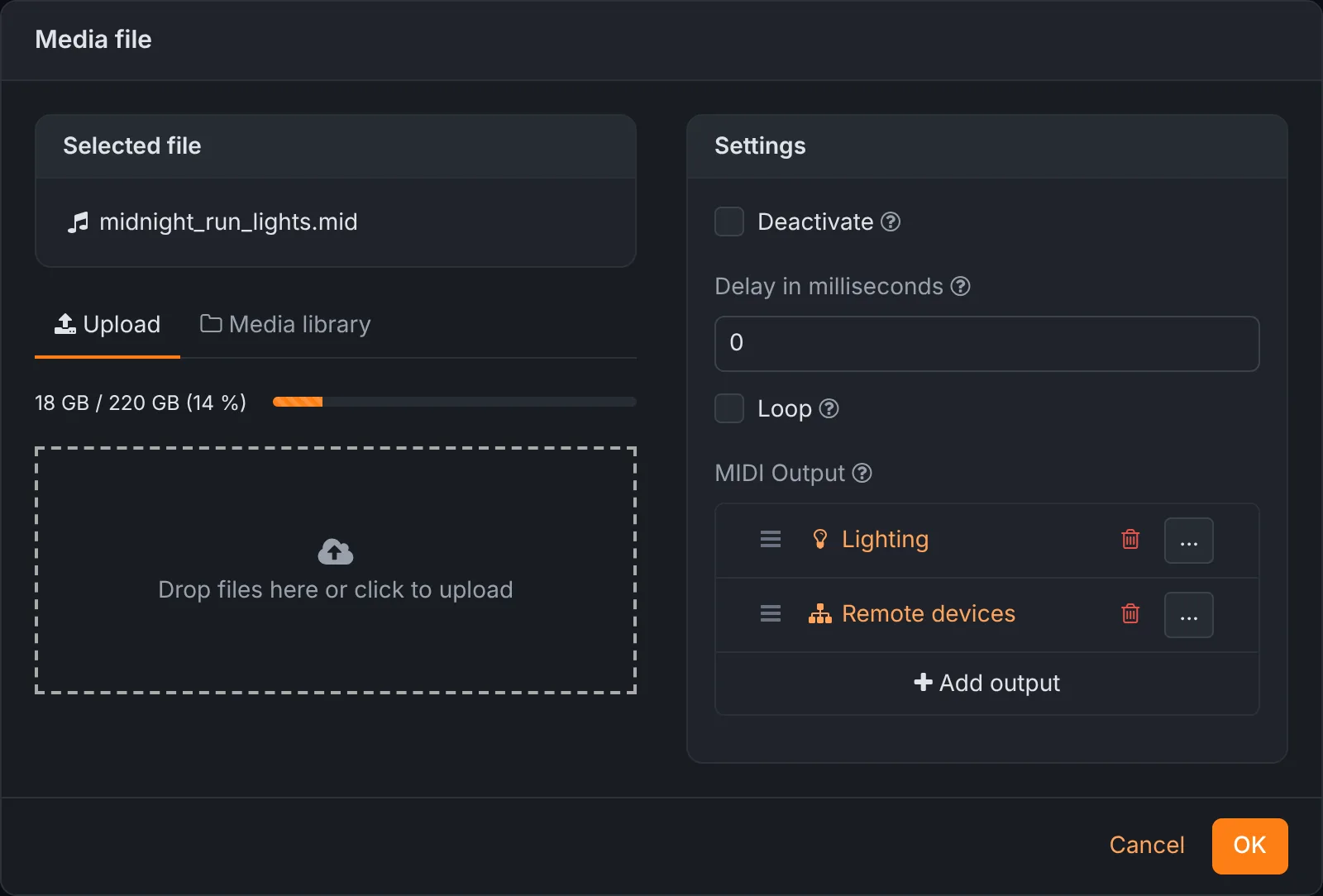
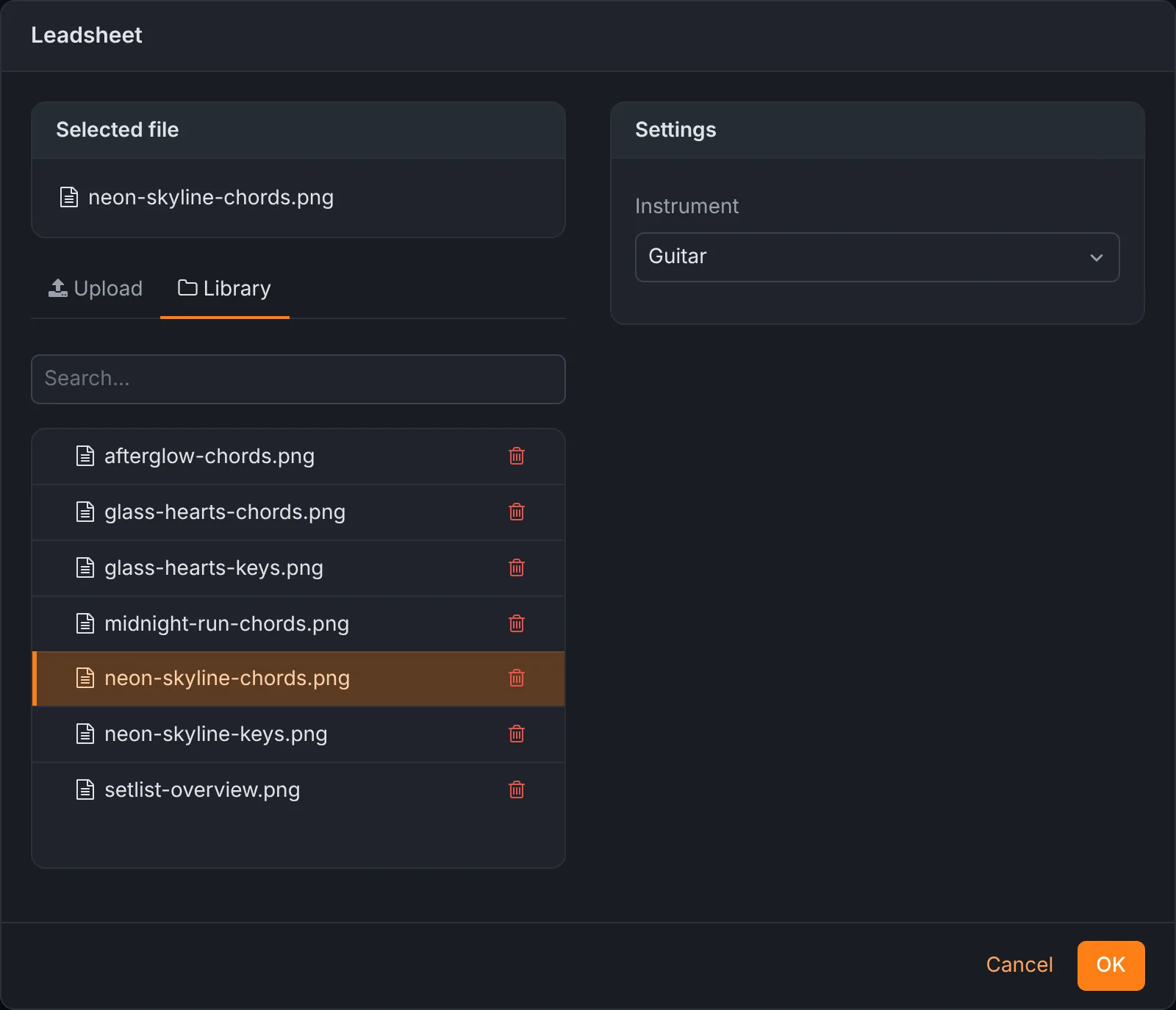
The file dialog has two halves. On the left you choose the file: Upload a new one (drop it on the box or click to browse; the bar above shows how full the device's storage is), or pick one from the Media library. On the right are the settings for this use of the file:
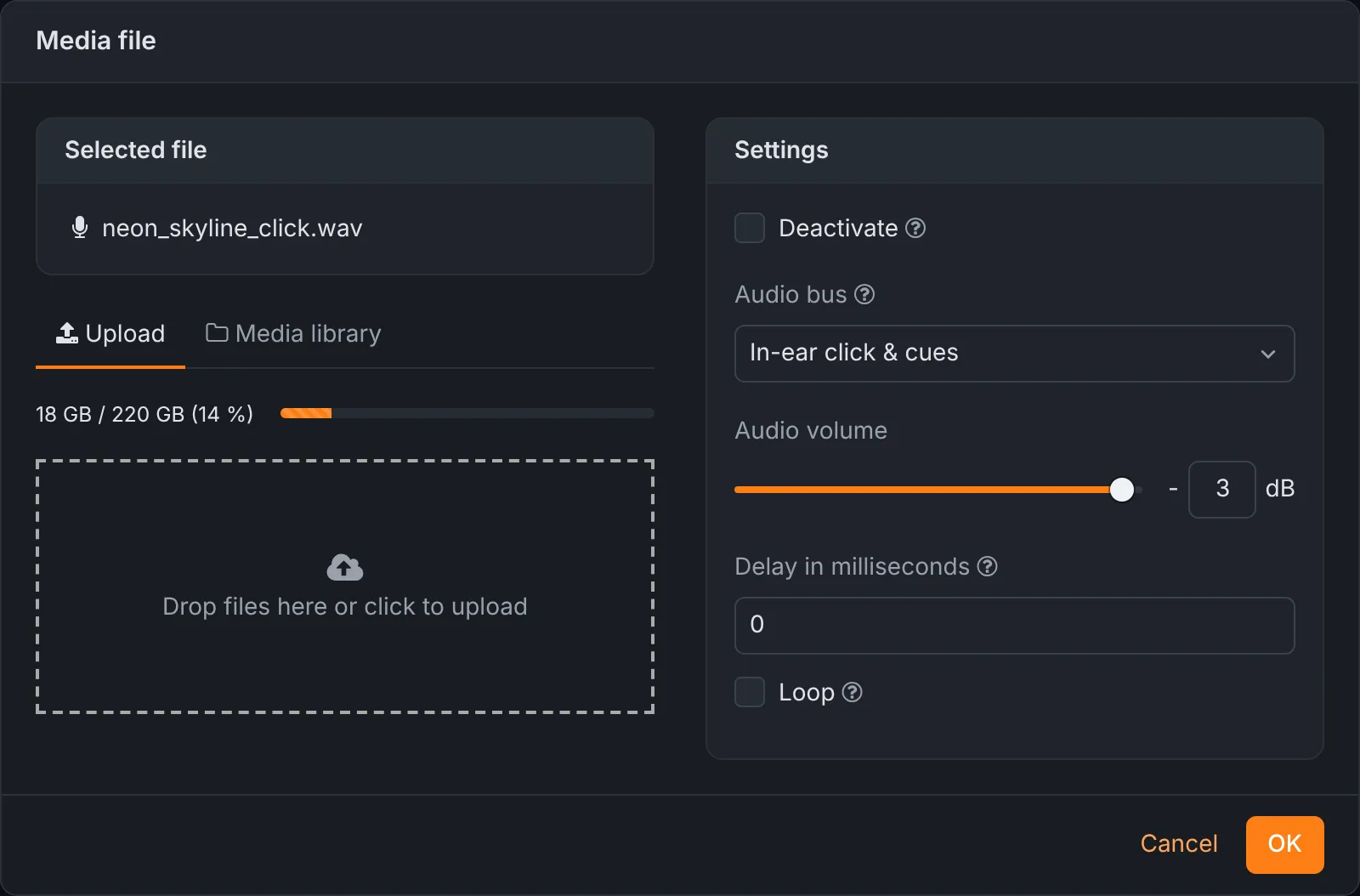
- Deactivate
- Keep the file in the composition but skip it on playback.
- Audio bus
- Audio files only: which audio bus plays it.
- Audio volume
- Audio files only: the level of this file, in dB.
- Delay in milliseconds
- Starts this file later than the composition, e.g.
2000lets two seconds of click run before the backing track comes in. - Loop
- Repeat this file until the composition ends: a short video loop or ambience under a longer composition.
- MIDI output
- MIDI files only: where the MIDI goes, see below.
MIDI files and routing
A MIDI file in a composition is played in sync with the audio and video. Where its events go is set by its outputs; a file can have several:
- MIDI device out
- To the MIDI output chosen under Settings → MIDI: program changes for your keyboard, patch changes for a guitar rig, cues for a lighting desk.
- Lighting
- Turns the MIDI into DMX on a universe. The note number is the DMX channel and the velocity, doubled, is its value, so velocity 127 is full (254). Useful for light shows programmed in a DAW.
- Remote devices
- To other Rocket Show units, see several devices.
Every output can shift the MIDI on the way: a channel offset and a note offset are added to every event.
Actions on the timeline
An action fires once, at a set position of the composition: switch the house lights off over HTTP, send a program change, set DMX channels, raise a relay. Choose Add → Action, enter the position in milliseconds (0 is the start) and add one or more actions to fire at that moment:
| Type | What it does |
|---|---|
| Transport | Play, Play as sample, Toggle play, Pause, Next composition, Previous composition, Stop, Select composition by name, Select composition by name and play. “Play as sample” starts a composition on top of whatever is playing, for jingles and sound effects; up to 20 can run at once. |
| System | Reboot the device. |
| MIDI | Send one MIDI message (note on/off, aftertouch, control change, program change, channel pressure or pitch bend) on any channel to the MIDI output. |
| Lighting | Set DMX channels to fixed values, on one or more universes. |
| HTTP | Call a URL with GET, POST or another method, with a body and headers. Controls anything with a web API: house lights, a projector, a show-control system. |
| External control | Switch a digital output (a GPIO pin) on or off: relays, signal lights, a fog machine trigger. |
| Null | Does nothing; a placeholder. |
When remote devices are set up, every action can also run on them, with or without running here (Execute locally).
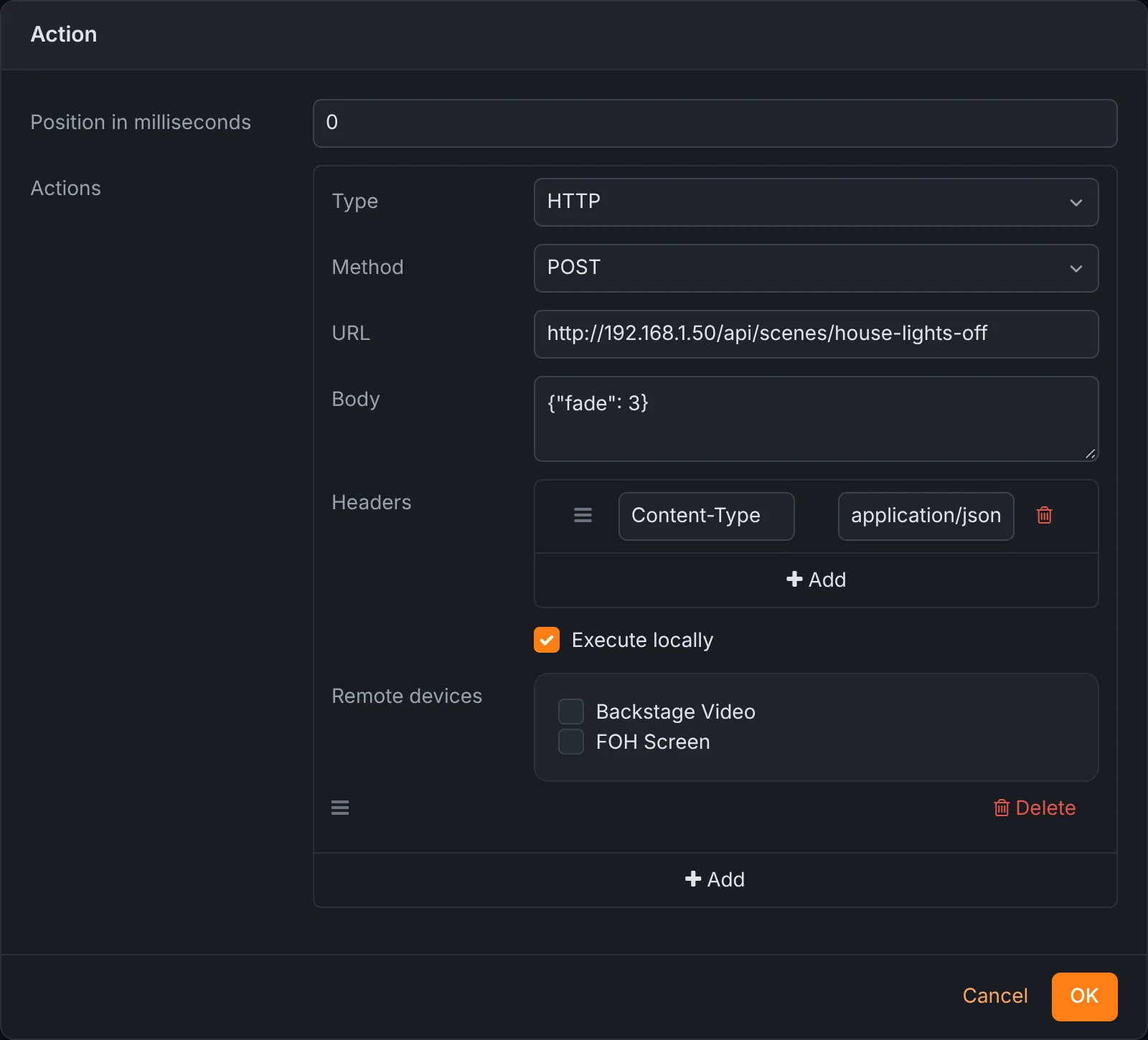
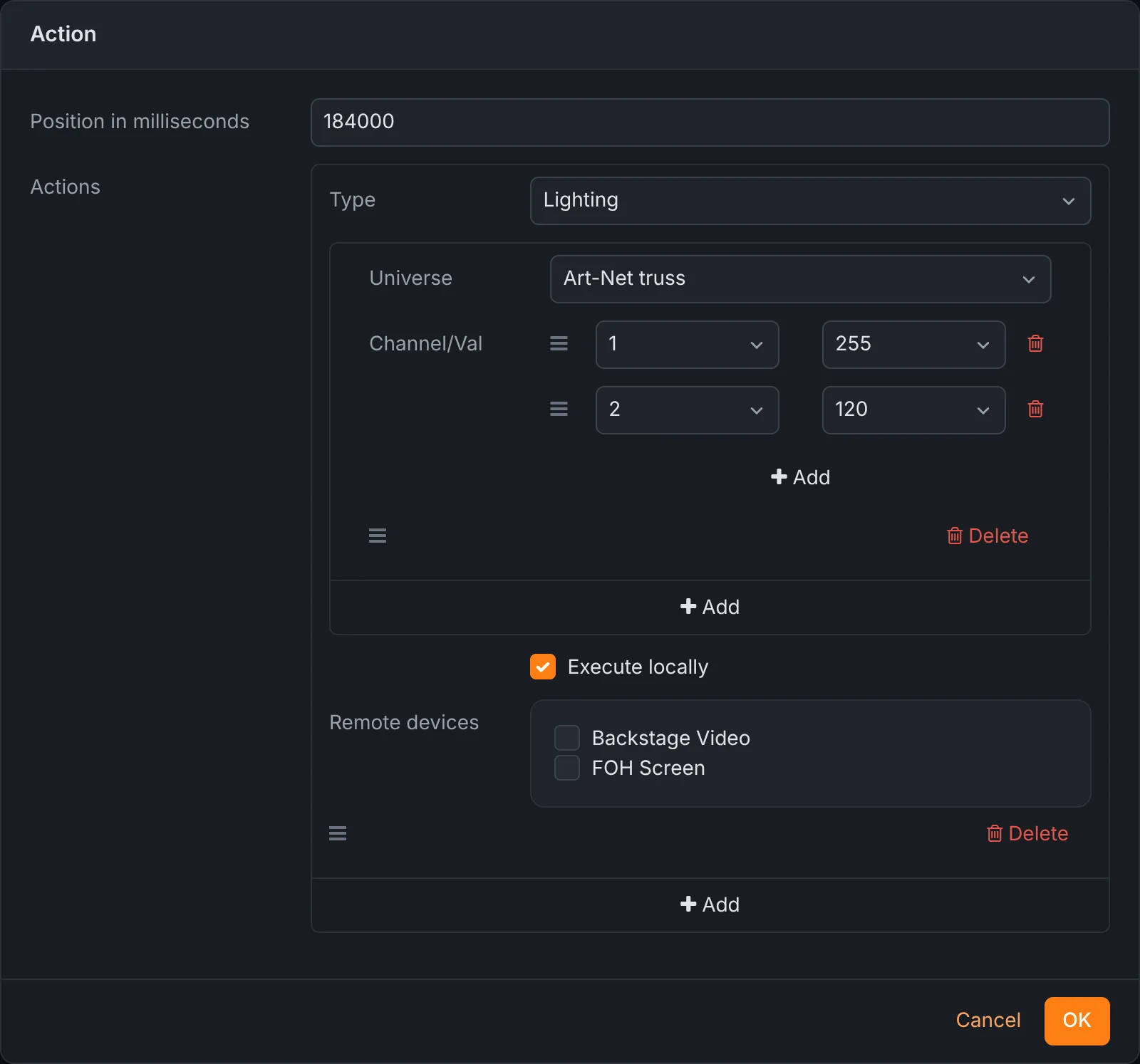
The same action types are used for MIDI control, external control and more.
Lead sheets
A lead sheet is an image of a chord chart, a score page or a lyric sheet, assigned to an instrument. Add → Lead sheet lets you upload an image (or pick one already on the device from the Library) and choose the instrument it is for. The instruments are defined under Settings → Band; a composition can have one sheet per instrument. On stage they appear full screen.
Sets
A set is the running order of a show. On the Sets tab, Create set starts a new one, or click an existing one to edit it.
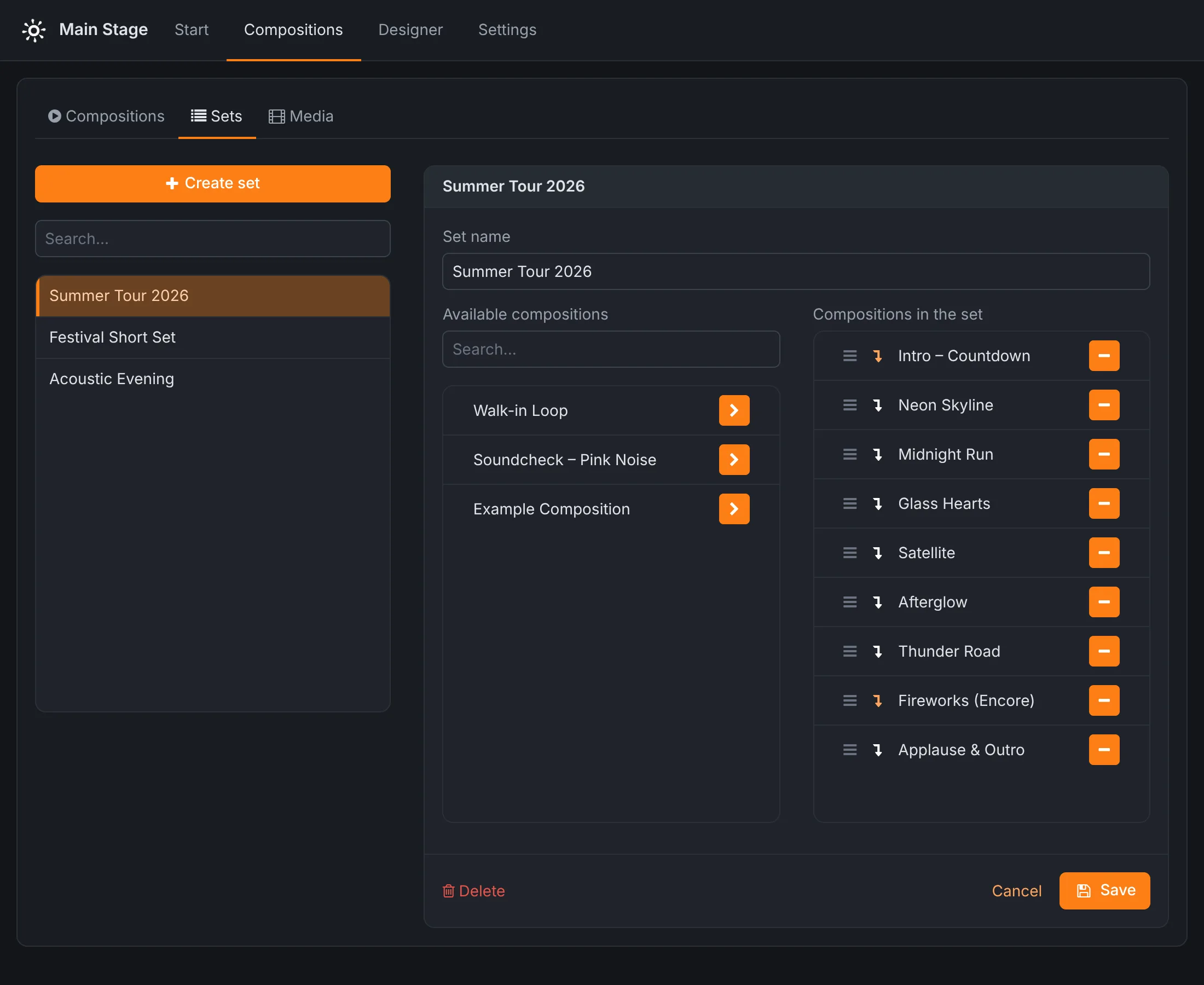
- The arrow button next to a composition on the left adds it to the set; the minus button on the right takes it out. A composition can be in any number of sets.
- Drag compositions by their handle (☰) to change the order.
- The ↴ icon in front of a composition, when highlighted, makes the next composition start automatically as soon as this one ends, as long as auto-select is on at the transport. Use it for an intro that runs straight into the first song, or a medley.
Sets are loaded on the Start screen.
Media library
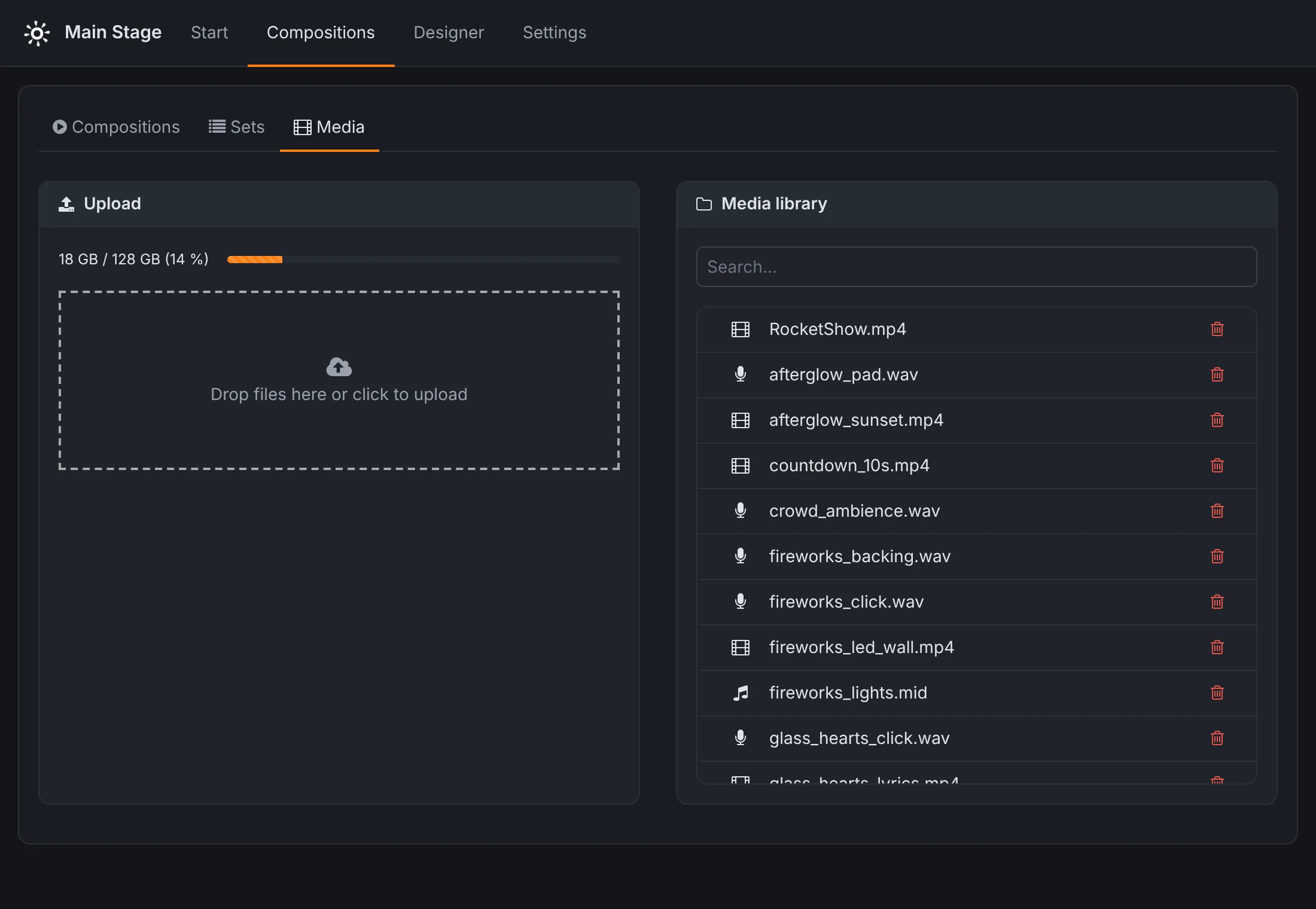
The Media tab holds every audio, video and MIDI file on the device. Upload several files at once by dropping them on the upload box; the bar above shows the storage in use. Search the library by name, and remove files you no longer need with the bin. Files are uploaded once and shared by all compositions that use them.
Lighting designer
The lighting designer builds a light show from your fixtures, with a 3D preview of the stage, and lays it out on the timeline of a song. Rocket Show plays it back with the composition of the same name: audio, video, MIDI and light from one play button. The designer is built into every device under Designer, and it is also available free in your browser to try or to prepare a show on the road.
The workspace
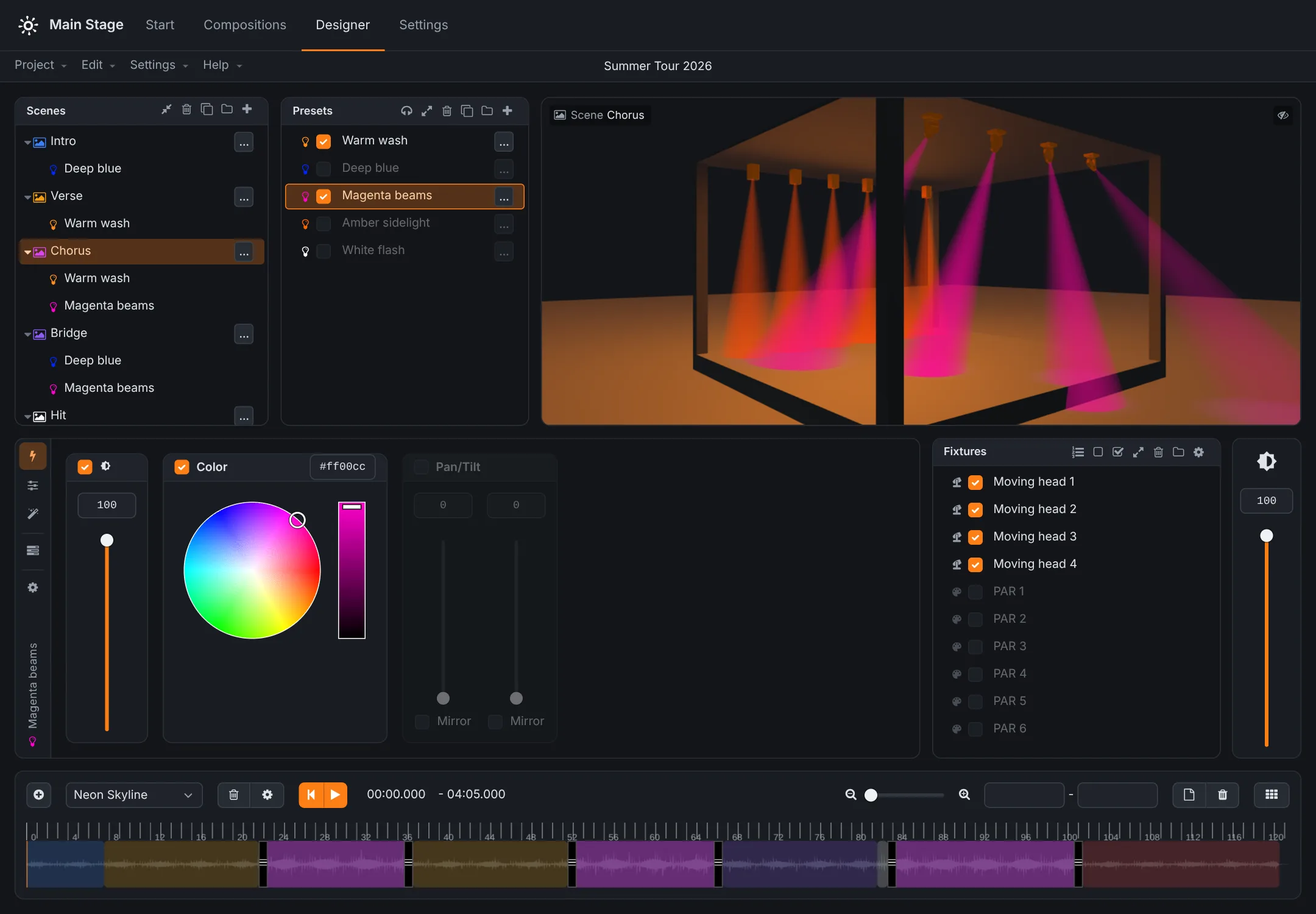
- Scenes (top left) and Presets (next to them): what the show is made of.
- Preview (top right): a 3D view of the stage that follows whatever you select or play. Drag to look around. The eye icon hides it to save performance on slower computers.
- Preset editor (middle): the vertical tabs switch between capabilities, channels, effects, steps and the fixture settings.
- Fixtures (middle right): the fixtures of the project; tick the ones the selected preset uses. Next to it, the master dimmer for the whole project.
- Timeline (bottom): the compositions, their audio and the scenes placed on them.
Drag the borders between the areas to resize them. The menu bar holds Project, Edit (undo and redo), Settings and Help.
Projects
A project is one lighting show. Project in the designer's menu has New, Open, Save, Save as…, Import and Export. Projects are stored on the device; export one to keep a copy or to move it between the online designer and a device. The name of the open project is shown in the middle of the menu bar.
Save often. Leaving the Designer page discards changes that are not saved.
Fixture pool
The fixture pool (the cogwheel in the fixtures panel, or Settings → Fixture pool in the designer's menu) is where fixtures are added to a project and patched:
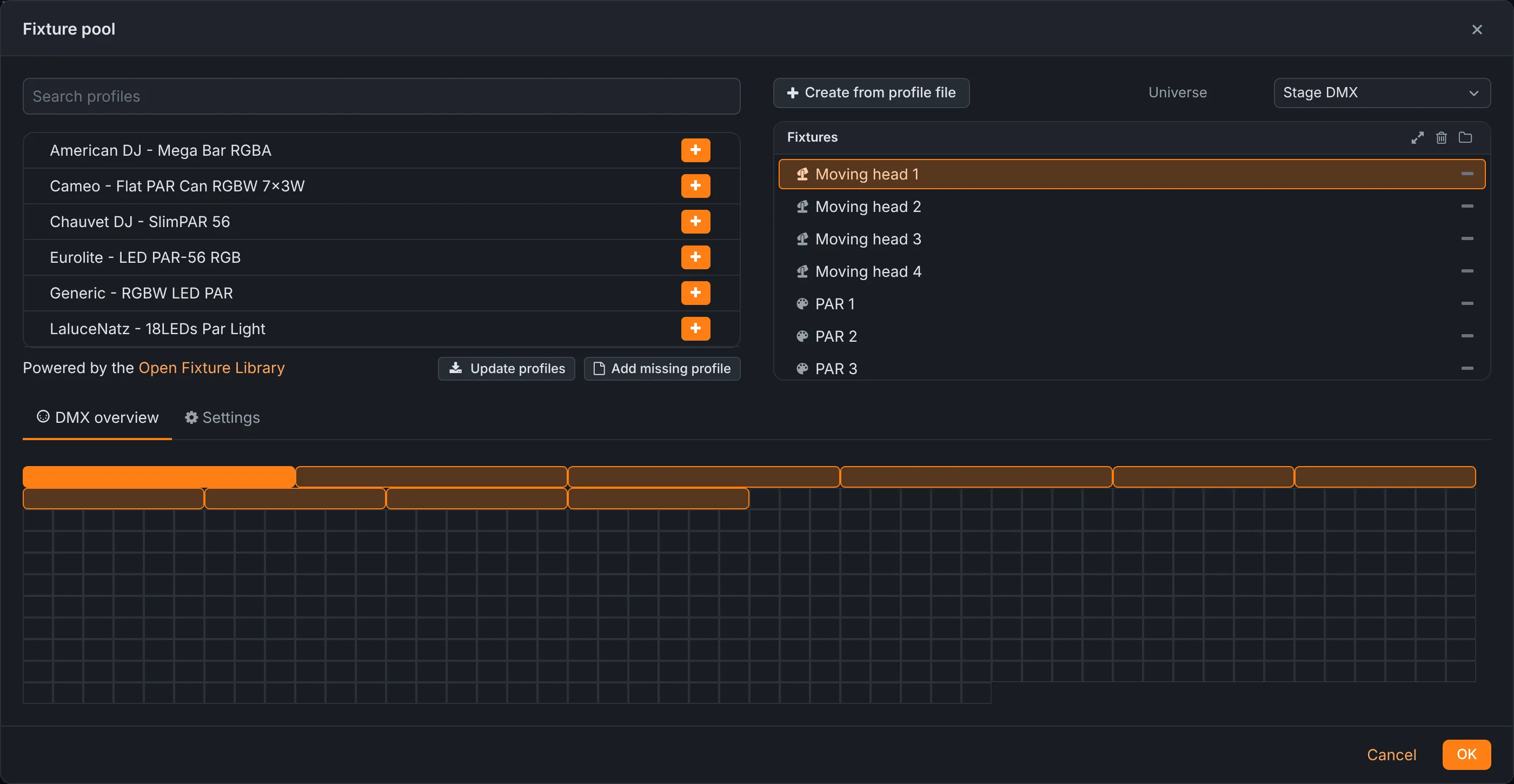
- Search profiles and add a fixture with the plus button. The profiles come from the Open Fixture Library; Update profiles fetches the latest version of the library (the device needs internet access for that).
- Create from profile file adds a fixture from an Open Fixture Library JSON file, for a fixture that is not in the library yet. You can build one with the online fixture editor. Add missing profile leads there as well.
- Pick the universe at the top right. The universes are the ones set up under Settings → Lighting.
- The DMX overview shows every fixture as a block on the universe's 512 channels; drag a block to change the fixture's address. Overlapping fixtures are flagged.
- The Settings tab sets the selected fixture's name, its mode (the channel layout chosen on the fixture itself), its universe and its first channel.
Where the fixtures hang is set in the designer's own settings tab (the cogwheel among the vertical tabs): front or back, top or bottom of the stage, or a manual position and rotation, along with the size of the stage the preview draws.
Presets
A preset gives a group of fixtures a look: Warm wash on the PARs, Magenta beams on the moving heads. Select a preset, tick its fixtures in the fixtures panel, and set its values:
- Capabilities work across fixture types: dimmer, colour (a colour picker that drives RGB, RGBW and similar fixtures), colour wheel, pan and tilt (with mirroring), and anything else the profiles describe, such as strobe, zoom, focus or gobo.
- Channels set raw DMX values per fixture channel, for the cases capabilities do not cover.
The … button of a preset sets its name, colour, start and end within a scene, and fade in and fade out times (before or after its start and end), with a curve. The presets list also has folders, duplicate, delete and solo, which previews one preset on its own.
Effects
An effect moves values over time. A curve effect (sine, square, triangle, sawtooth, reverse sawtooth) drives the capabilities or channels you tick, for example a tilt sweep or a dimmer pulse; a pan-tilt effect draws movements with moving heads.
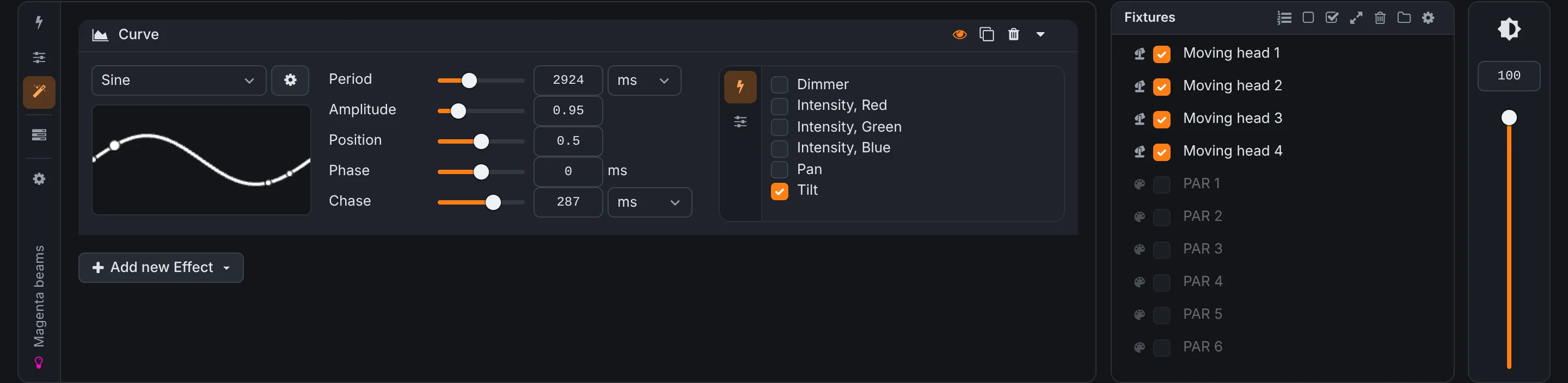
- Period
- The length of one cycle, in milliseconds or in beats. In beats, it follows the tempo of the composition.
- Amplitude, position
- How far the curve swings, and around which value.
- Phase
- Shifts the curve in time.
- Chase
- Offsets each fixture against the next, so the movement travels across the rig. Chase groups moves fixtures in pairs, threes and so on.
- Width
- The part of the period the curve is on; in a chase, how many fixtures are lit at once.
- Run, when finished
- Run forever, for a number of cycles or for a duration, then hold the last value or return to the base value.
Steps and chases
A preset can be a sequence of steps, each with its own values, start time and transition (linear, ease in, ease out, ease in-out or snap). Loop the steps for a running chase, or let them play once for a build-up.
Scenes
A scene combines presets: the Chorus scene in the demo is Warm wash plus Magenta beams. A preset can be used in any number of scenes, and presets higher in a scene override lower ones where they control the same thing. Every scene has a dimmer, fade in and fade out times and a colour that marks it on the timeline. Scenes can be put in folders and duplicated.
Timeline

Create a composition on the timeline with the plus button and give it exactly the name of the Rocket Show composition it belongs to. Under synchronization, choose Audio file and pick the song's audio from the media library (or upload it). Its waveform appears on the timeline, and the designer guesses the tempo.
- Select a scene, then click and drag on the timeline to draw where it plays. Drag a region to move it, drag its edges to change its length.
- The grid (the grid button at the right) is musical (BPM, time signature, offset) or time based; with snap to grid, regions snap to beats and bars.
- Zoom with the slider; enter exact start and end times in the fields next to it.
- Play previews the show with the audio, in the browser.
Playing it in the show
Save the project. When the composition of the same name plays on the Start screen, Rocket Show plays the lighting along with it. Nothing else has to be linked.
While you work in the designer, the device can also send what you select straight to the real fixtures. Switch on Designer live preview under Settings → Lighting, then select presets and scenes or play the timeline.
Settings
Settings are grouped in the list on the left. Changes take effect when you press Save; Discard throws them away. Rocket Show warns before you leave the page with unsaved changes. Where a page says so (MIDI and Audio), the changes take effect after the device has been restarted. The question-mark icons explain each setting when you point at them.
System
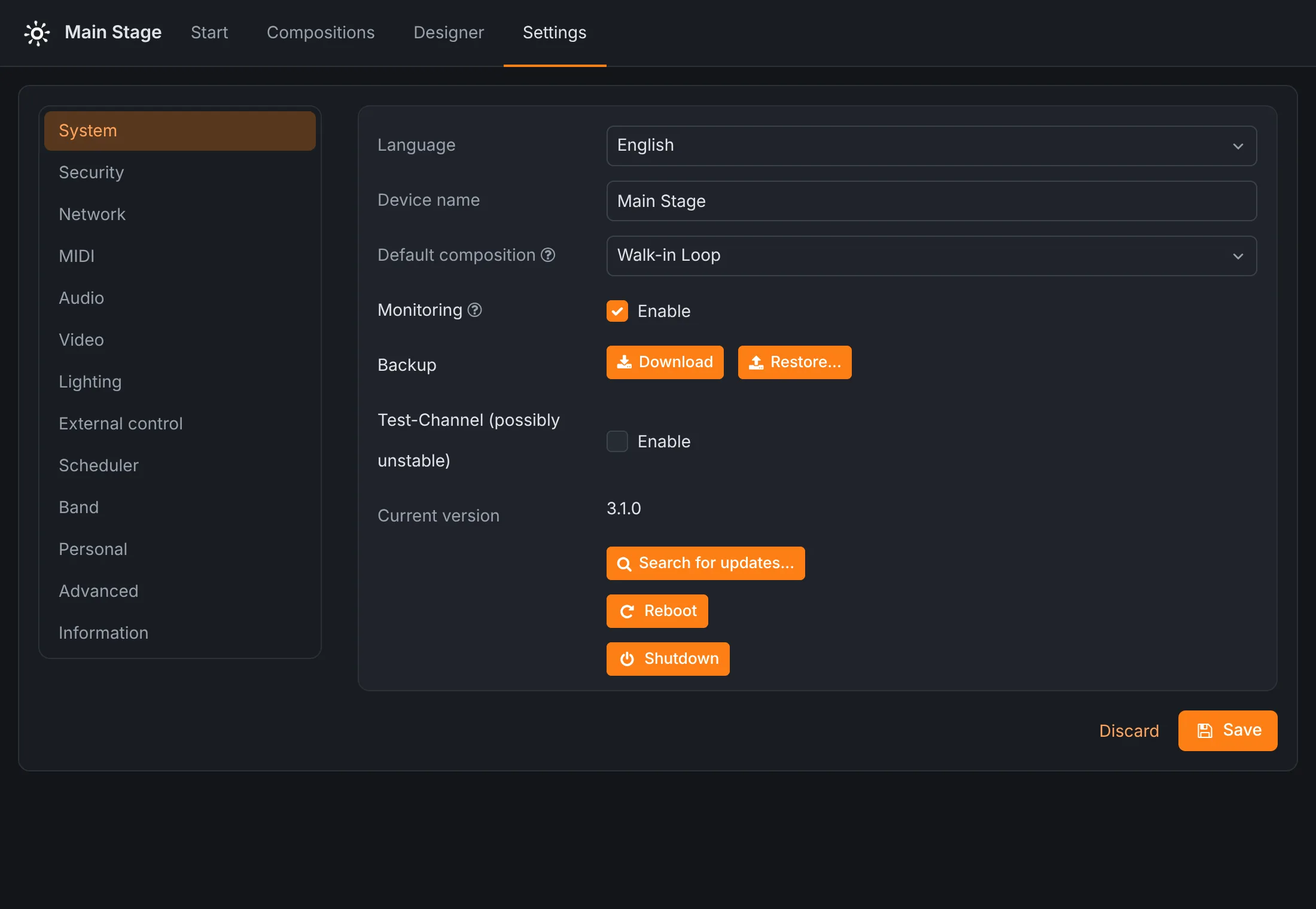
- Language
- The language of the interface.
- Device name
- Shown in the menu bar and the browser tab.
- Default composition
- Plays when the device starts and whenever nothing else is playing: walk-in music, a standby light look, a logo on the screen.
- Monitoring
- Measures audio levels and MIDI and lighting traffic for the activity indicators. Switch it off to save processing power.
- Backup SPARK
- Download saves the whole configuration, compositions, sets, media and designer projects as one file; Restore… puts a backup back. See maintenance.
- Test channel SPARK
- Offers pre-release versions in the update search. They may be unstable.
- Current version SPARK
- The installed version, and Search for updates….
- Reboot, Shutdown
- Restart or switch off the device. Remote devices set to synchronize follow.
Security
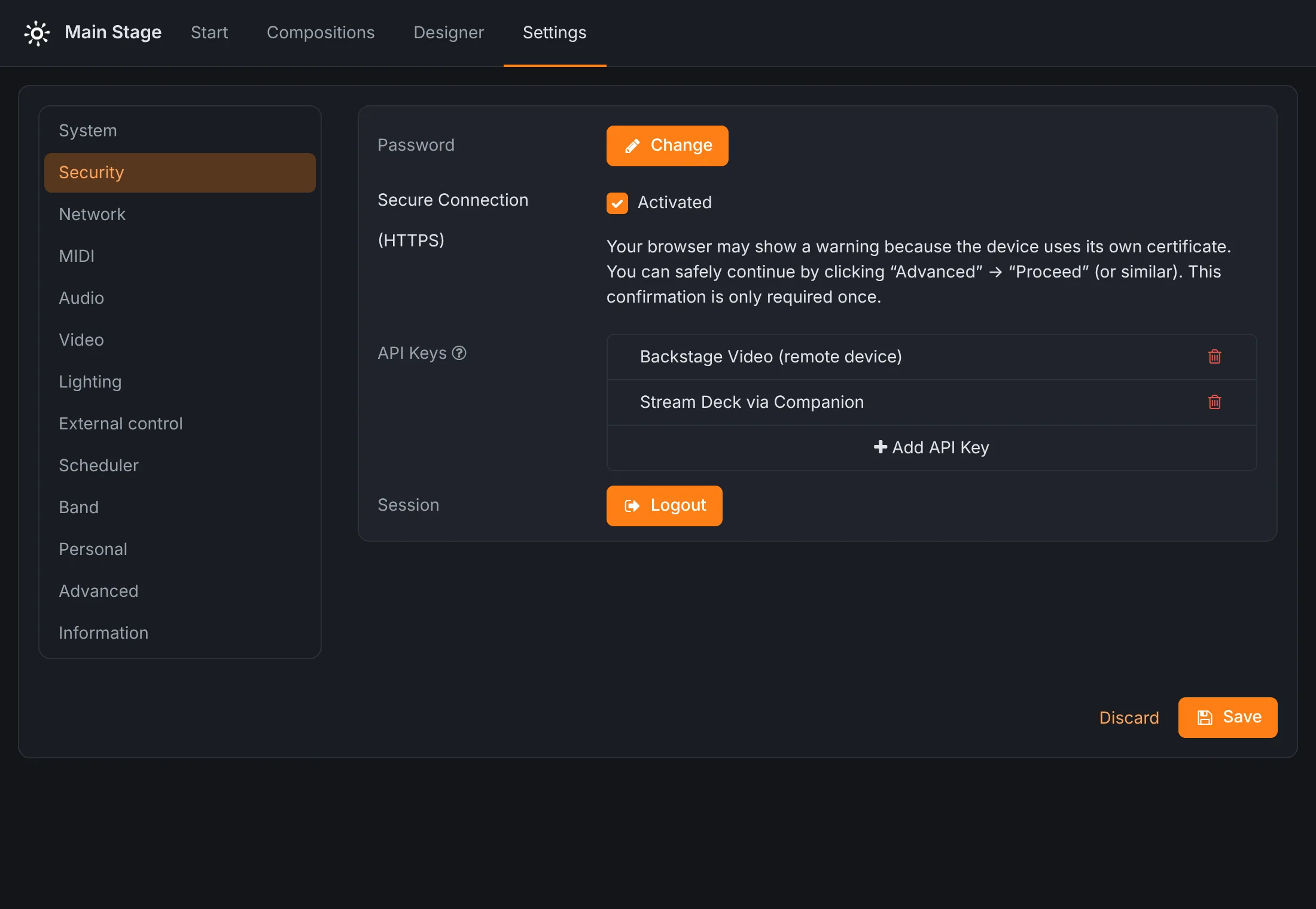
- Password
- Change the device password (you need the current one).
- Secure connection (HTTPS) SPARK
- Serve the interface over HTTPS. See the note on certificates.
- API keys
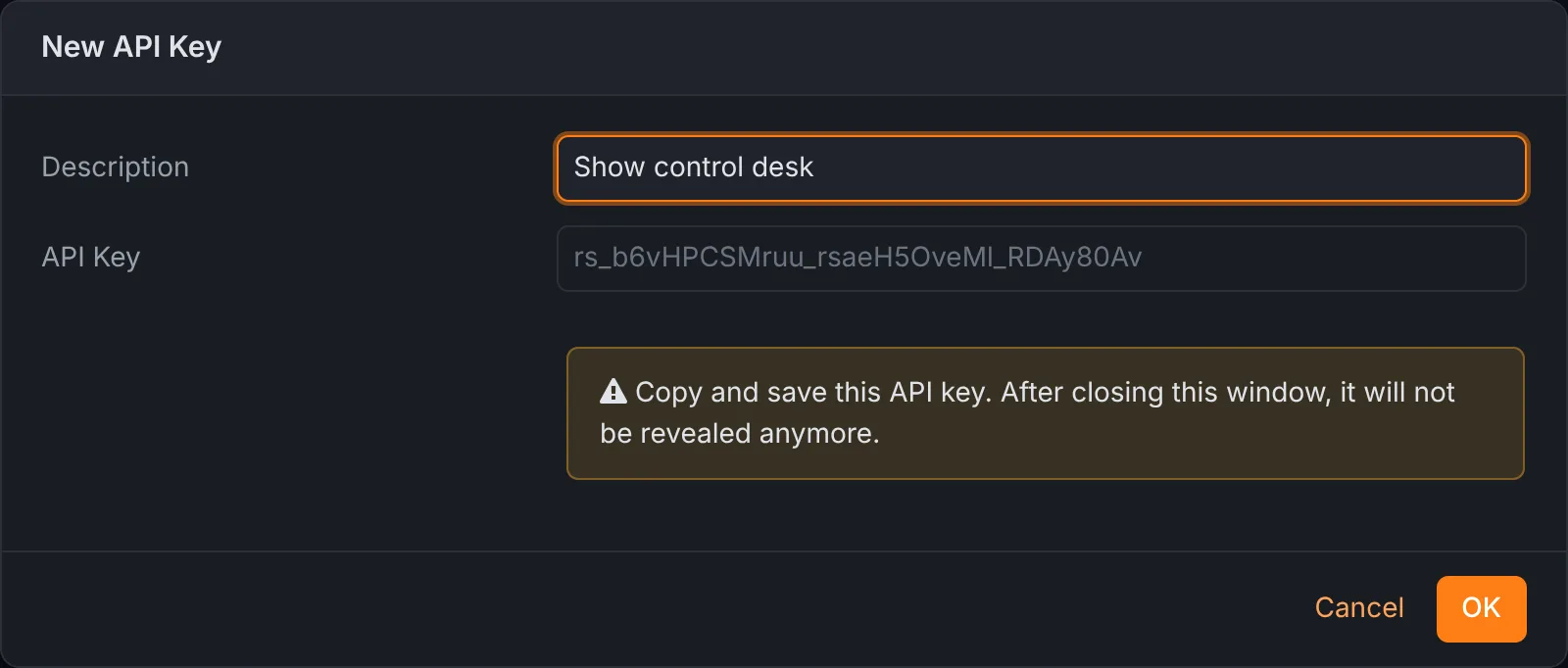
- Keys for other systems, such as a second Rocket Show unit or a show-control system, so they can control this device without the password. Add API Key asks for a description and shows the key once: copy it right away, it cannot be shown again. Delete a key to revoke it.
- Session
- Logout logs this browser out.
Network
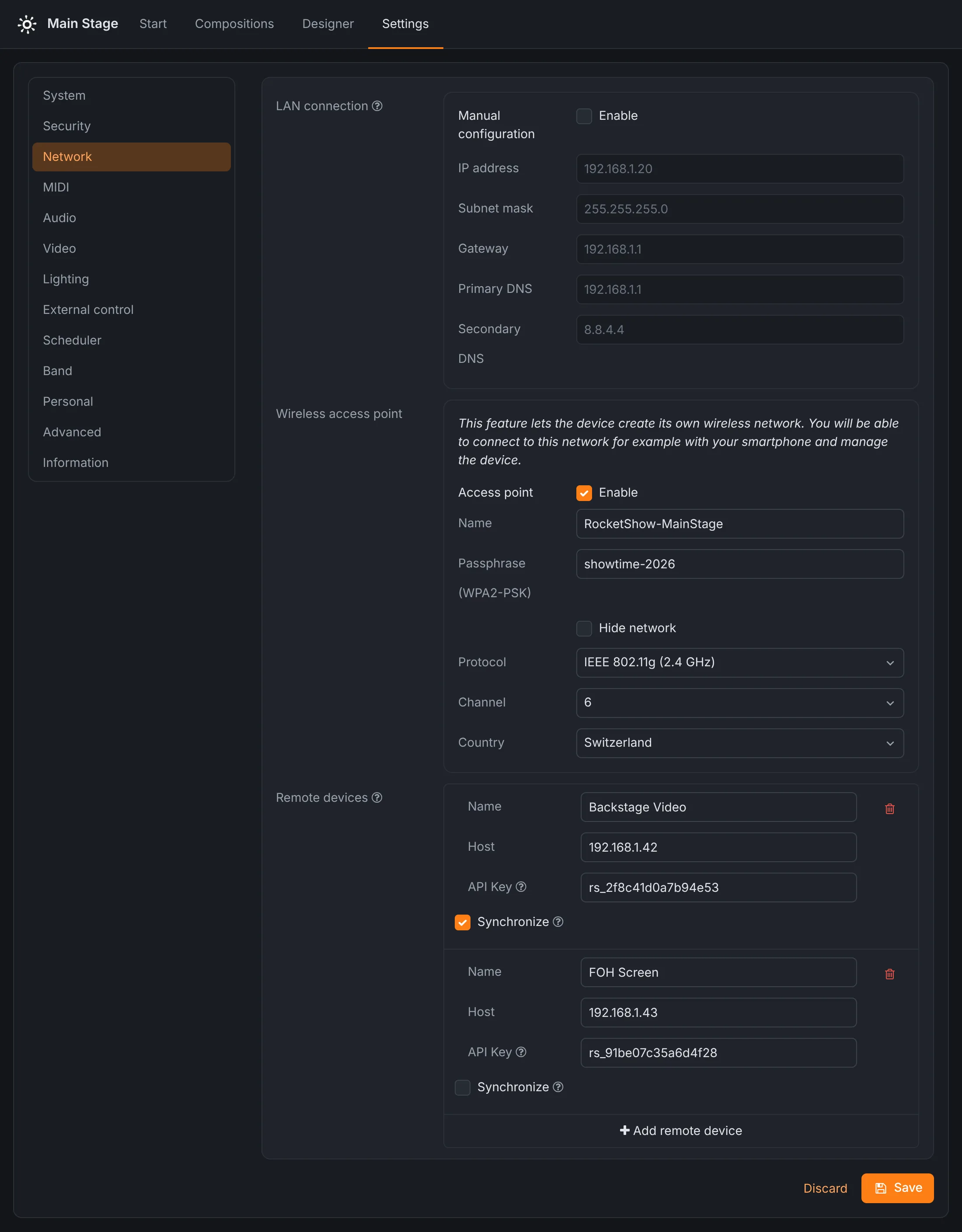
- LAN connection
- By default the device takes its address from your network (DHCP); the current address is shown. Tick Manual configuration to give it a fixed IP address, subnet mask, gateway and DNS servers.
- Wireless access point
- The device's own Wi-Fi network: its name, whether the name is hidden, the WPA2 passphrase (at least eight characters), the protocol and channel (2.4, 5 or 60 GHz) and the country, which decides the allowed channels.
- Remote devices
- Other Rocket Show units this one controls. Each has a name, its host name or IP address, an API key created on that device, and Synchronize. See several devices.
MIDI
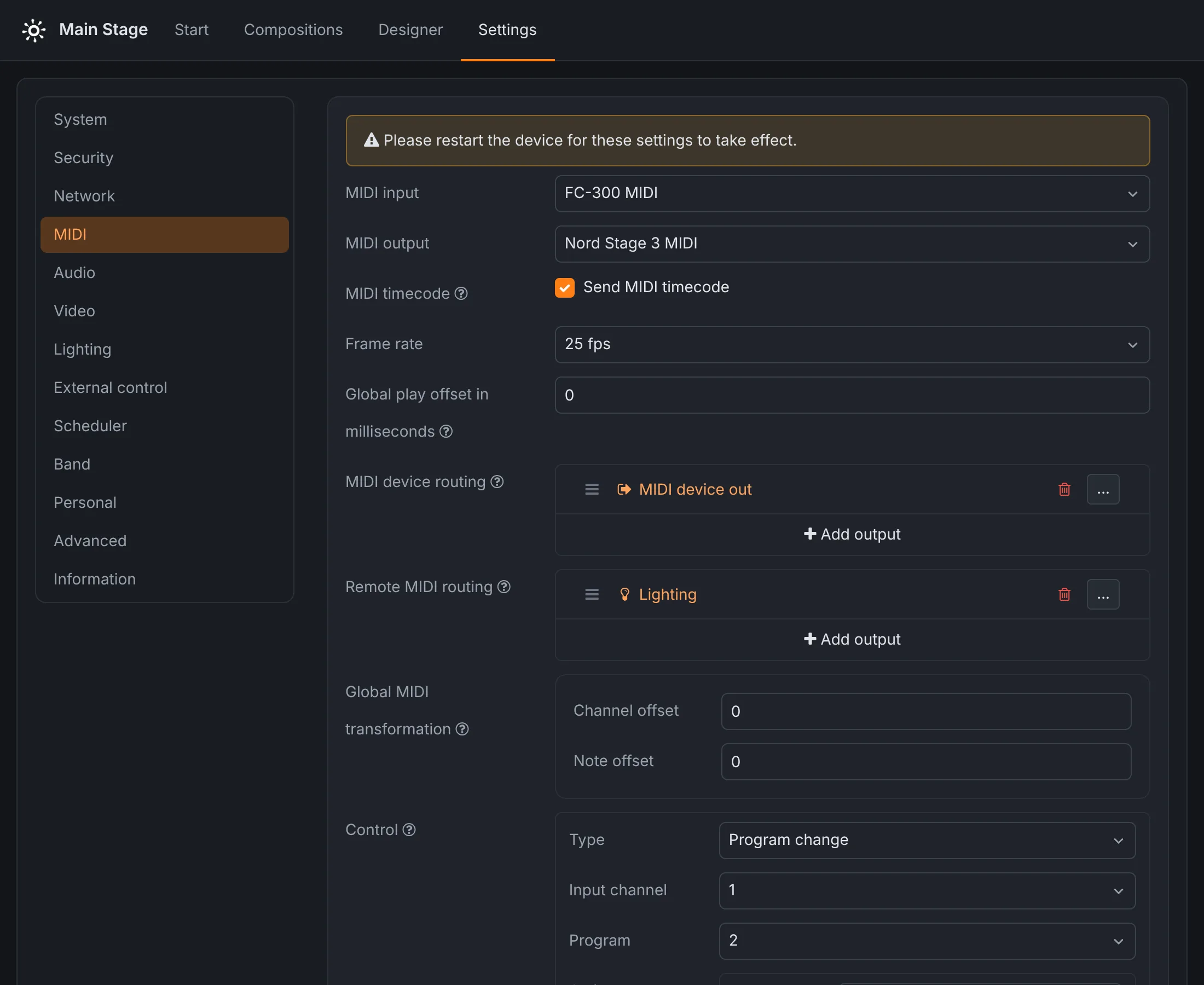
- MIDI input, MIDI output
- The MIDI ports to use. USB MIDI interfaces appear by name; ports on the device's serial interface are marked “Serial port”.
- MIDI timecode
- Sends MIDI timecode (MTC) while playing, at 24, 25, 29.97 drop-frame or 30 fps, so a DAW, a lighting desk or a video server can follow the position.
- Global play offset
- Delays (or, negative, advances) all MIDI by this many milliseconds to line it up with the other outputs.
- MIDI device routing
- Where MIDI arriving at the MIDI input goes: through to the MIDI output, to the lighting, or to remote devices. Turns the device into a MIDI router.
- Remote MIDI routing
- Where MIDI arriving from other Rocket Show units goes.
- Global MIDI transformation
- A channel and note offset applied to all incoming MIDI.
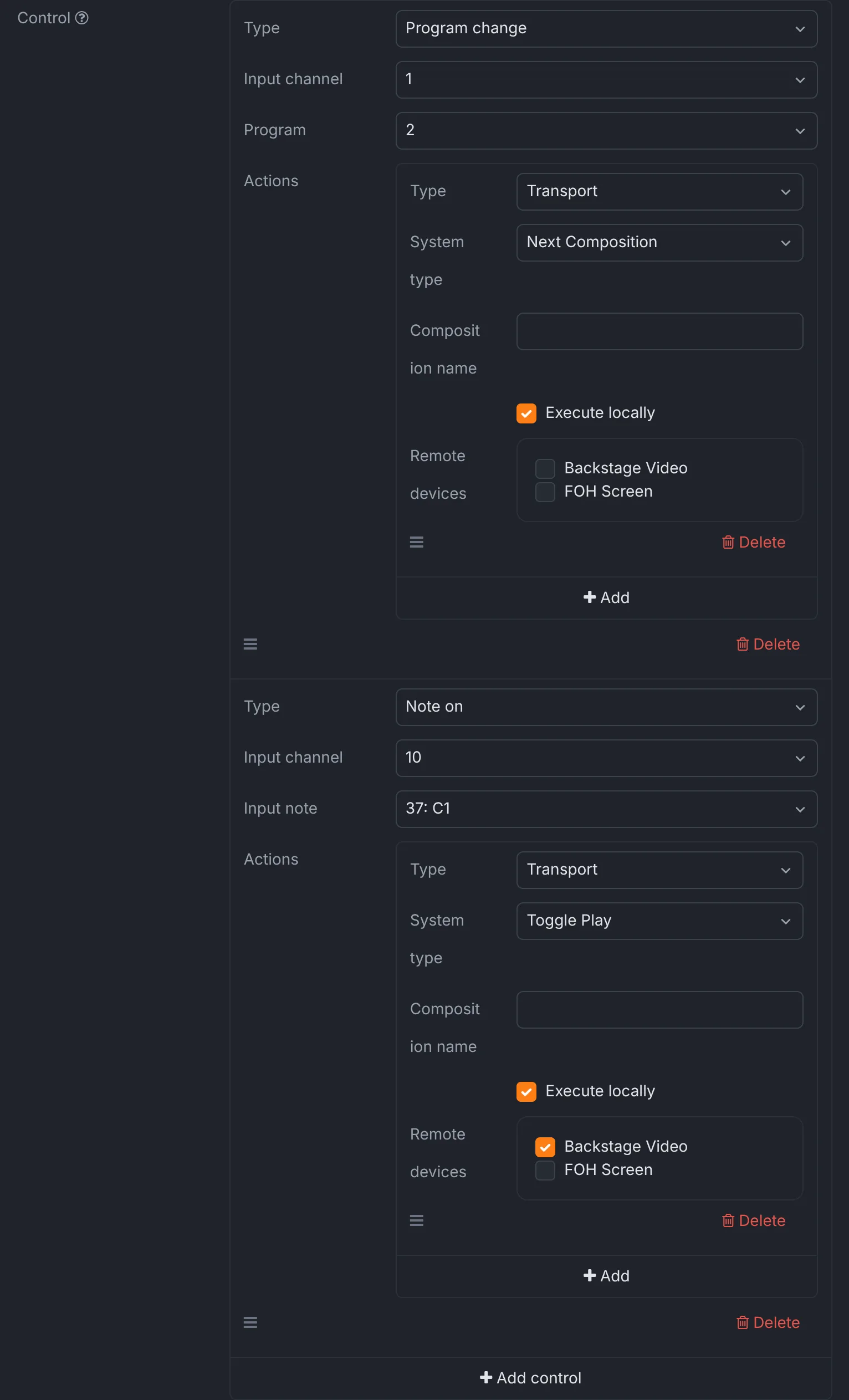
Control
Incoming MIDI can run the show. Each control listens for a note on or a program change on an input channel and fires a list of actions. In the demo, program change 2 on channel 1 from the foot controller selects the next song, and the kick drum pad (note C1 on channel 10) starts and pauses, here and on the backstage video unit.
Audio
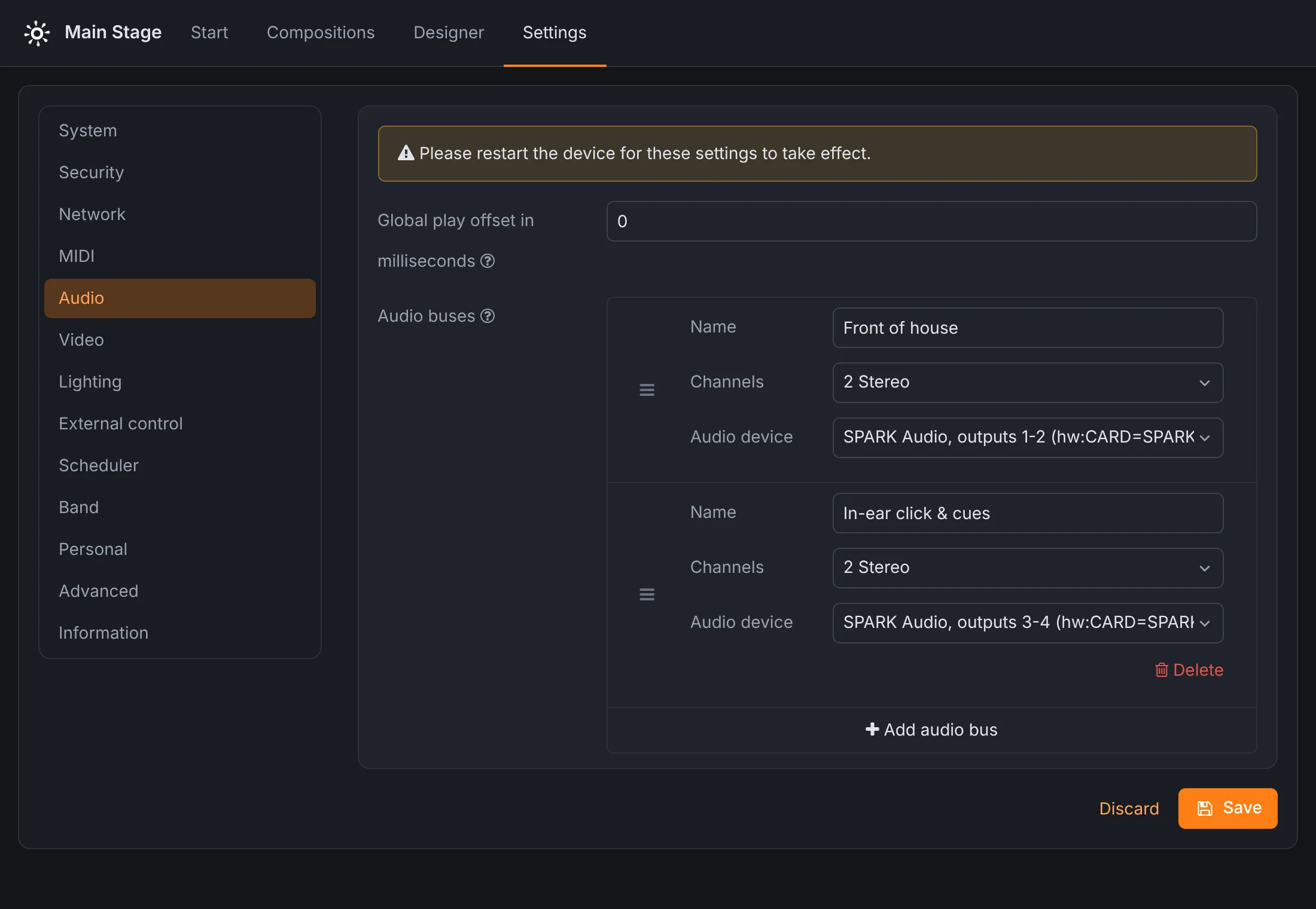
- Global play offset
- Delays (or advances) all audio by this many milliseconds.
- Output
- Where audio goes, on systems that offer a choice.
- Audio buses
- Named outputs for your compositions. Each bus has a name, a channel count (mono, stereo, 2.1, quadro, 5.1, 6.1 or 7.1) and the audio device it plays on. On SPARK, outputs 1-2 and 3-4 are two independent stereo buses, typically front of house and the in-ear click. The first bus cannot be deleted. Drag buses to reorder them.
- Sample rate, ALSA period size, ALSA buffer Community Edition
- Tuning for your USB sound card: leave them at default unless you hear dropouts (raise the period size or buffer) or need lower latency (lower them).
Video
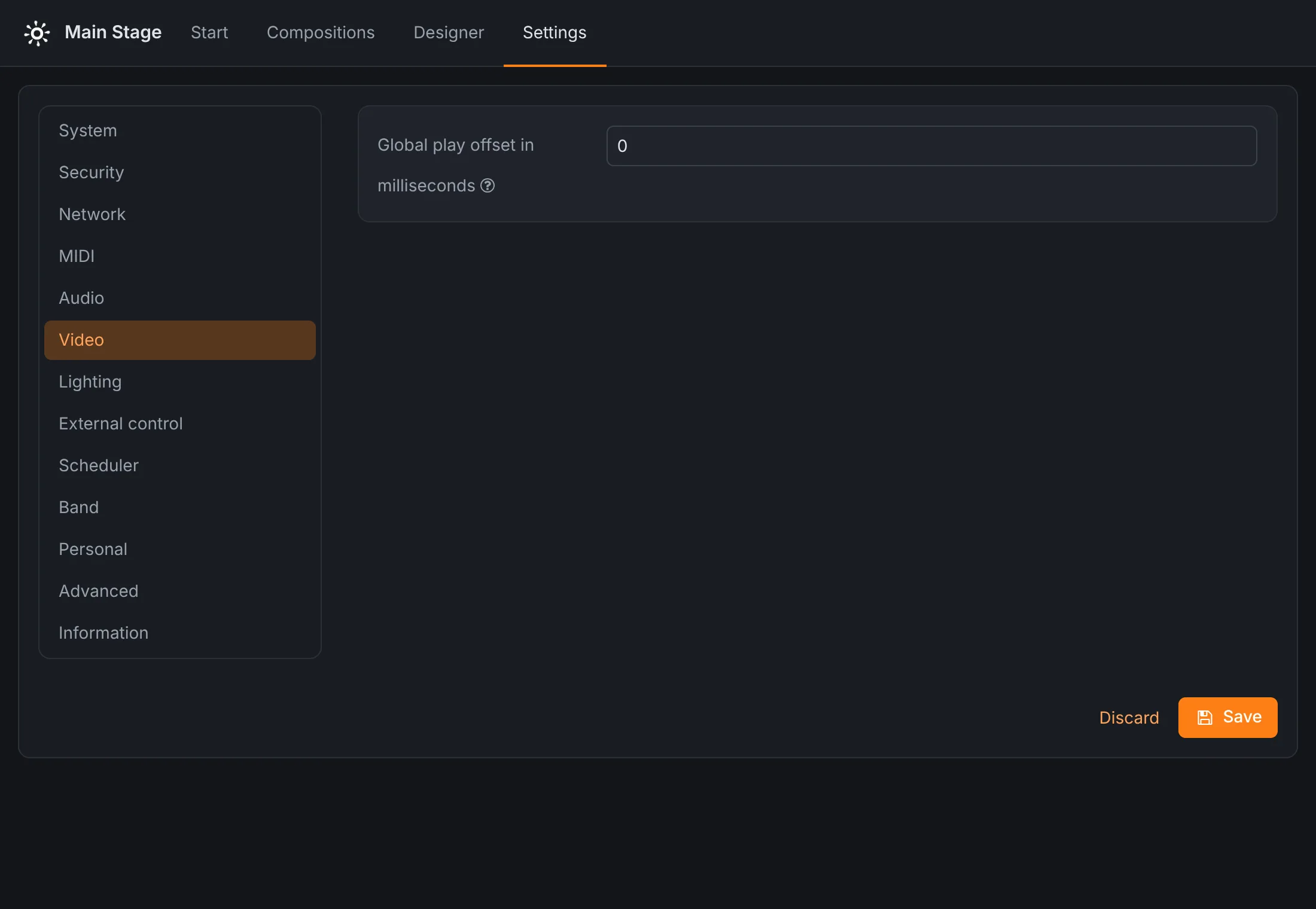
Video plays full screen on the HDMI output. The only setting is the global play offset in milliseconds, to line the picture up with the sound; projectors and screens add their own delay.
Lighting
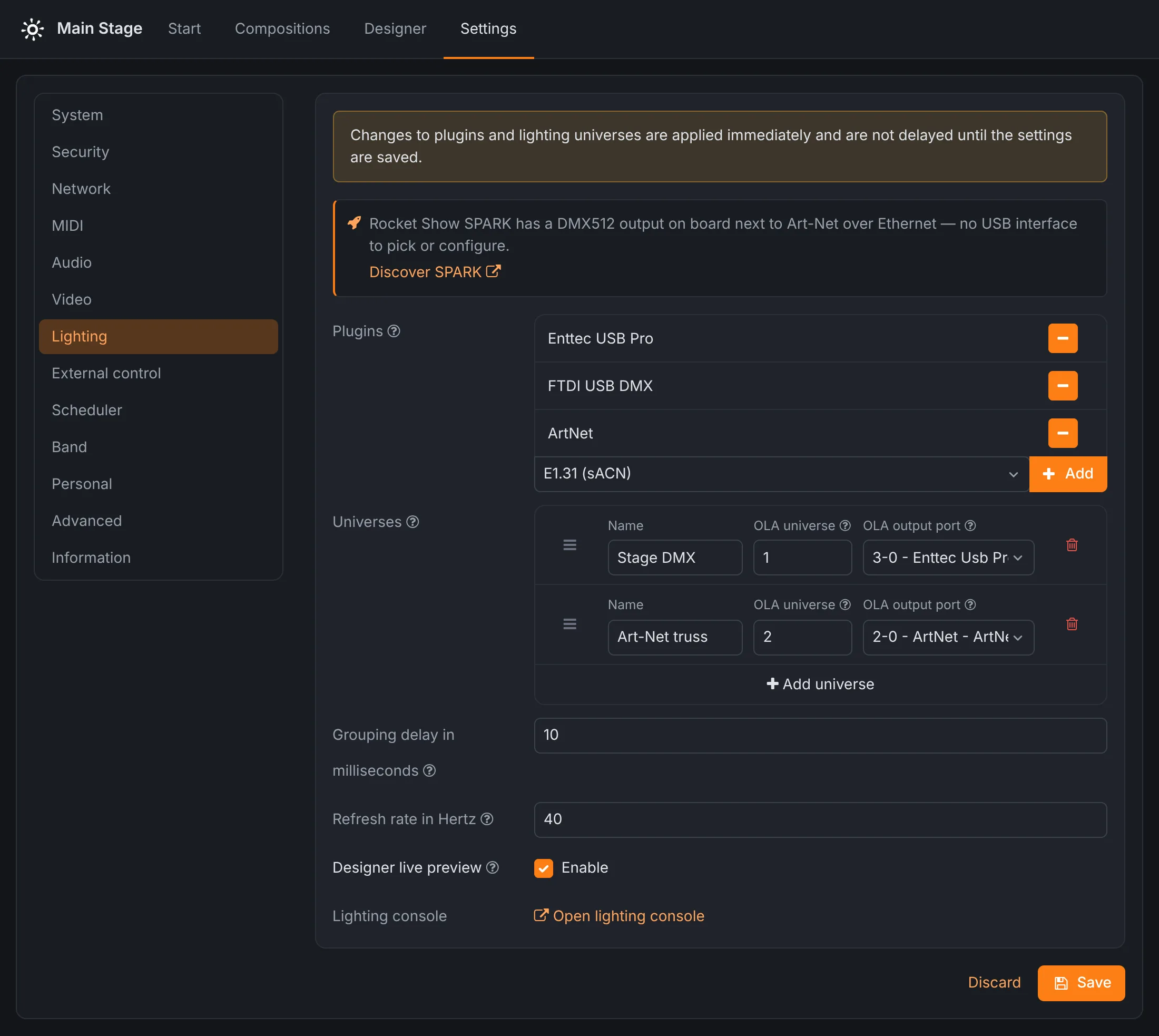
- Plugins Community Edition
- The Open Lighting Architecture (OLA) plugins that talk to your DMX hardware: Enttec USB Pro, FTDI USB DMX, Art-Net, sACN and more. Add the one for your interface; plugins that conflict with each other are marked. Changes apply immediately.
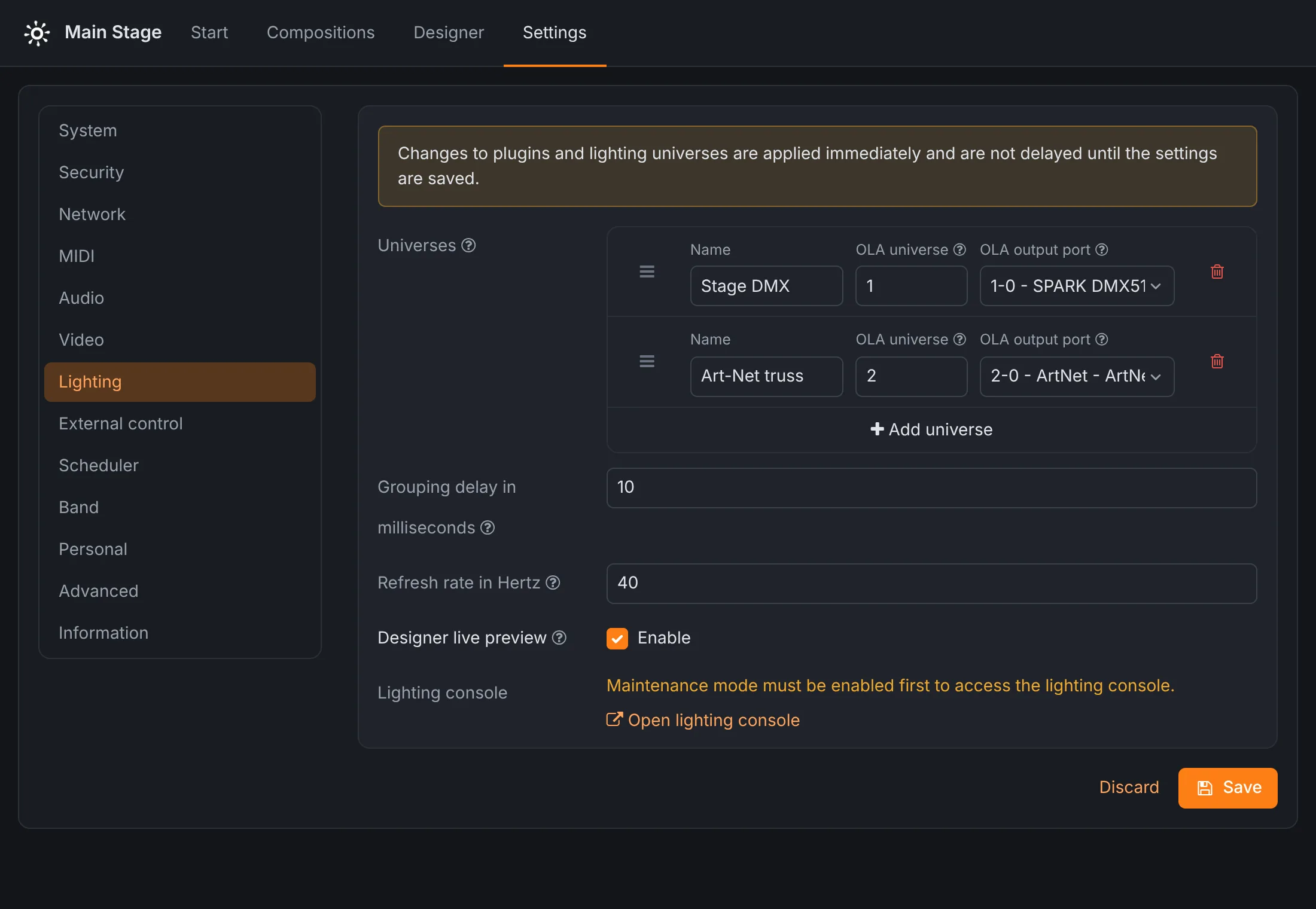
- Universes
- Each universe has a name (used everywhere in Rocket Show), the OLA universe number, and the output port it is sent to: SPARK's DMX512 output, a USB interface or an Art-Net universe. Changes apply immediately.
- Grouping delay
- Lighting changes closer together than this many milliseconds are sent as one update, which keeps DMX and network traffic down.
- Refresh rate
- How often per second the designer's lighting is calculated and sent. Higher is smoother but needs more processing power.
- Designer live preview
- Sends what you select in the designer to the real fixtures while you edit.
- Lighting console
- Opens the OLA web interface (port 9090) to inspect universes and test channels. On SPARK, maintenance mode has to be on first.
External control
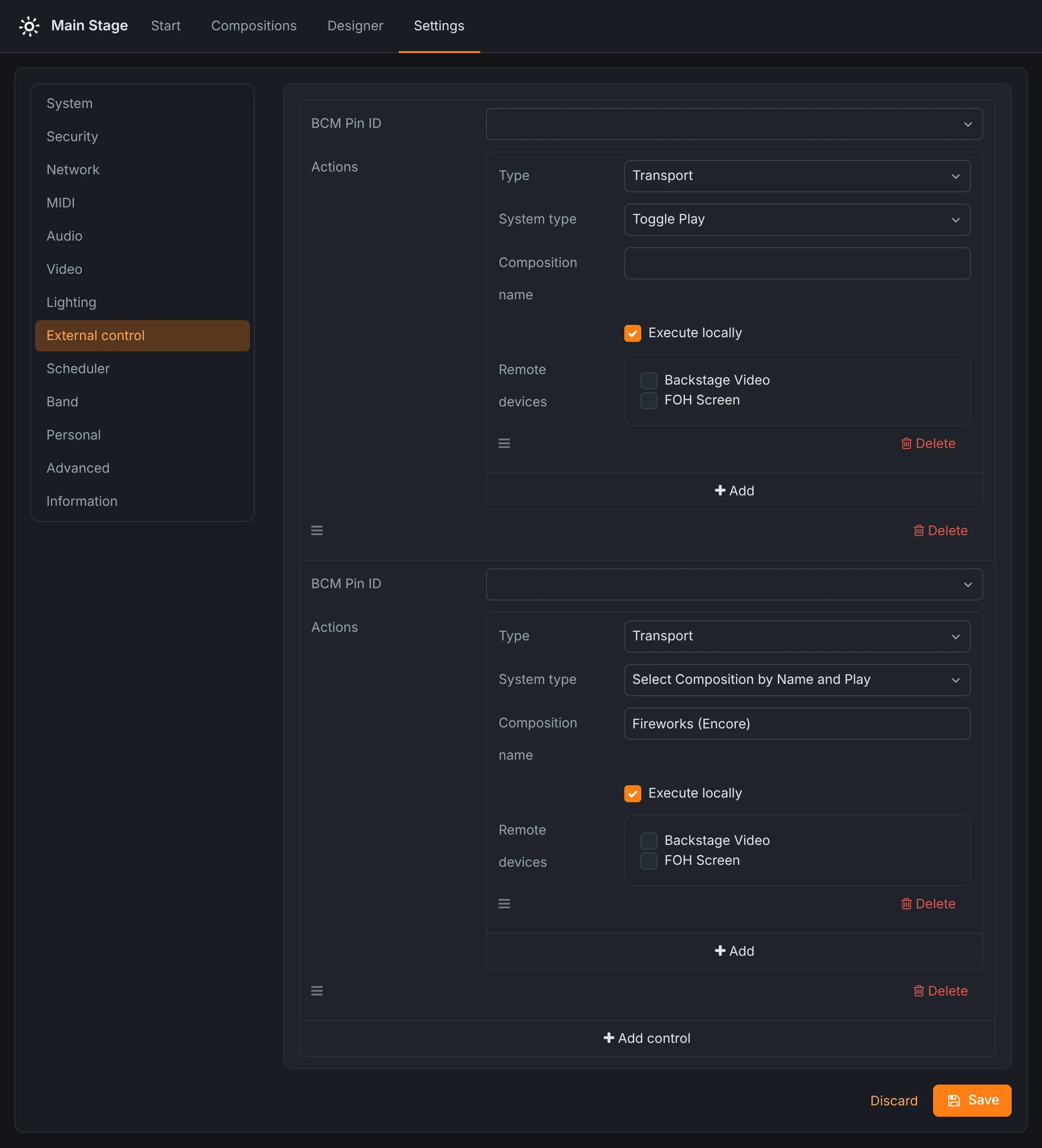
Buttons, foot switches, sensors and contact closures wired to the device's digital inputs can run the show. Each trigger names a pin (BCM numbering on the Raspberry Pi) and the actions to fire when it is activated. In the demo, a foot switch on pin 17 starts and pauses the show, and a button on pin 27 plays the encore. Digital outputs are switched with the External control action.
SPARK has two inputs and four outputs on screw terminals; on the Community Edition, the Raspberry Pi's GPIO pins are used directly.
Scheduler
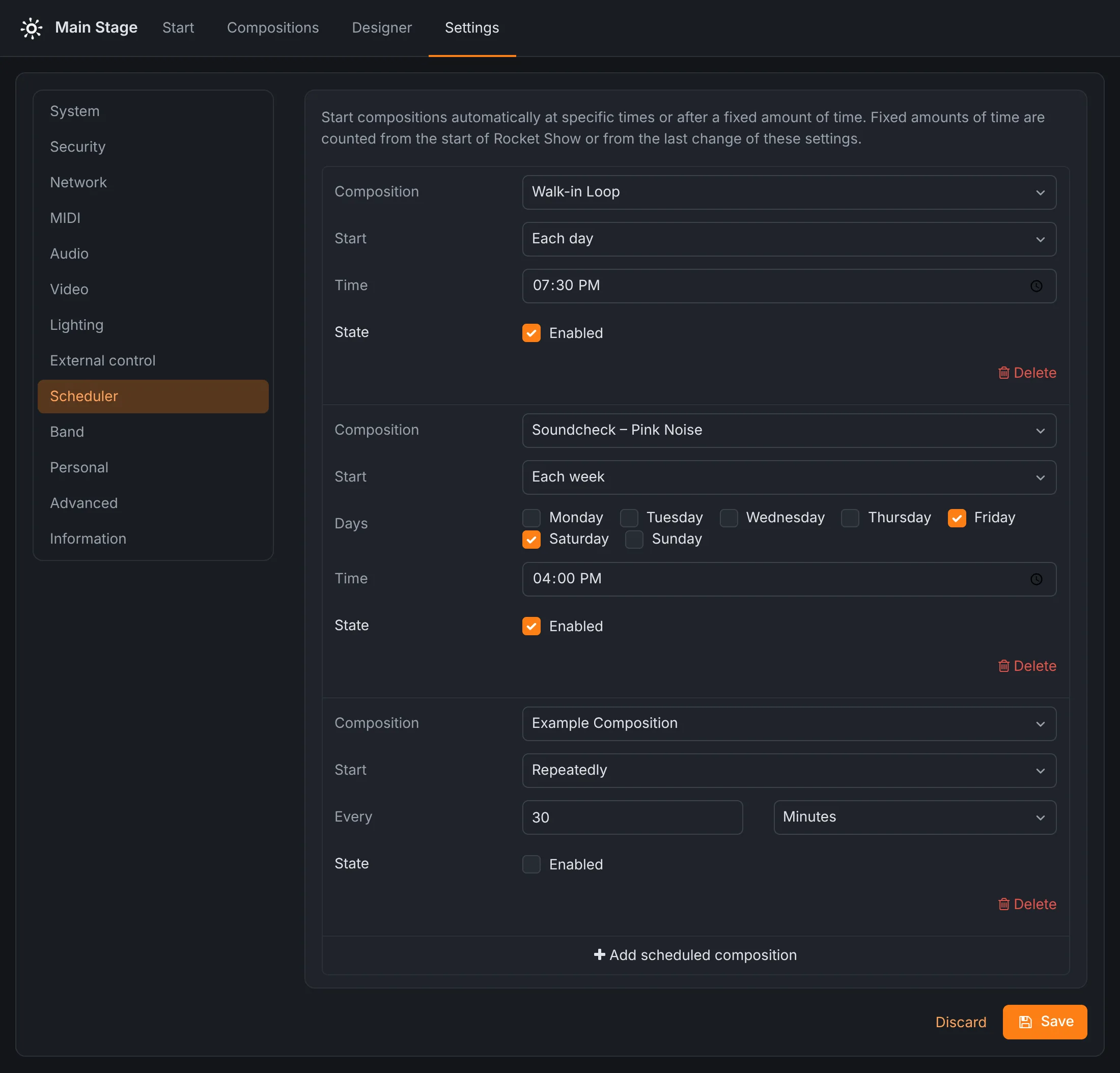
The scheduler starts compositions on its own, for installations, museums, attractions and venues:
- Repeatedly: every so many seconds, minutes, hours, days or weeks, counted from the start of the device or from the last change of these settings;
- Each day, each week on chosen weekdays, each month on a chosen day, or each year on a date, always at a set time. A day that does not exist in a month (the 31st) falls on the month's last day.
Each entry can be switched off without deleting it.
Band and Personal
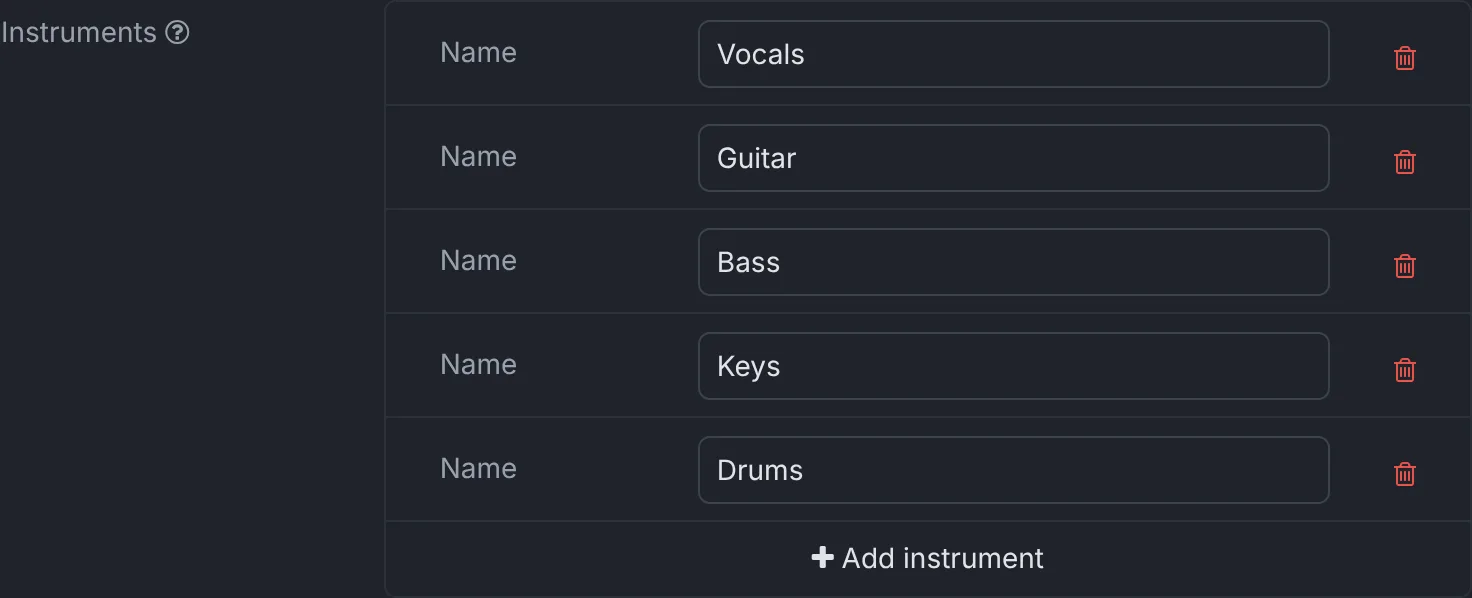
Under Band, list the instruments of your band. They are what lead sheets are assigned to. Under Personal, each musician picks the instrument they play on their own phone or tablet; that choice is stored in that browser only, so every device on stage shows its own part.
Advanced
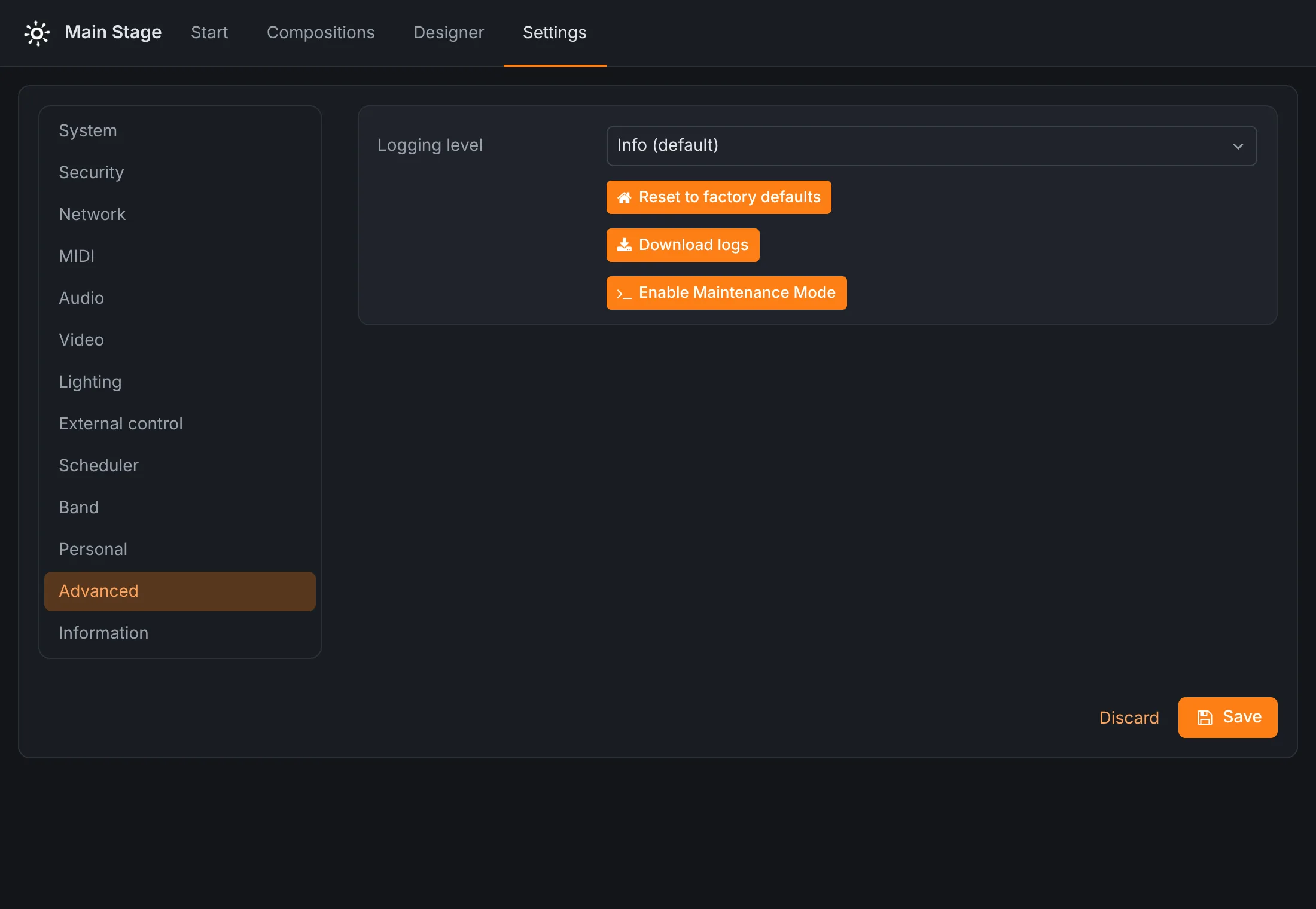
- Logging level
- How much the device writes to its log: Info (default), Debug or Trace. Raise it only while tracking down a problem.
- Reset to factory defaults SPARK
- Erases all files, compositions and settings and returns the device to its delivered state.
- Download logs
- Downloads the log files, to attach to a support request.
- Enable maintenance mode SPARK
- Opens SSH access with the user
rocketshowand a one-time password, for one hour or until the next reboot. Needed for the lighting console and for support.
Information
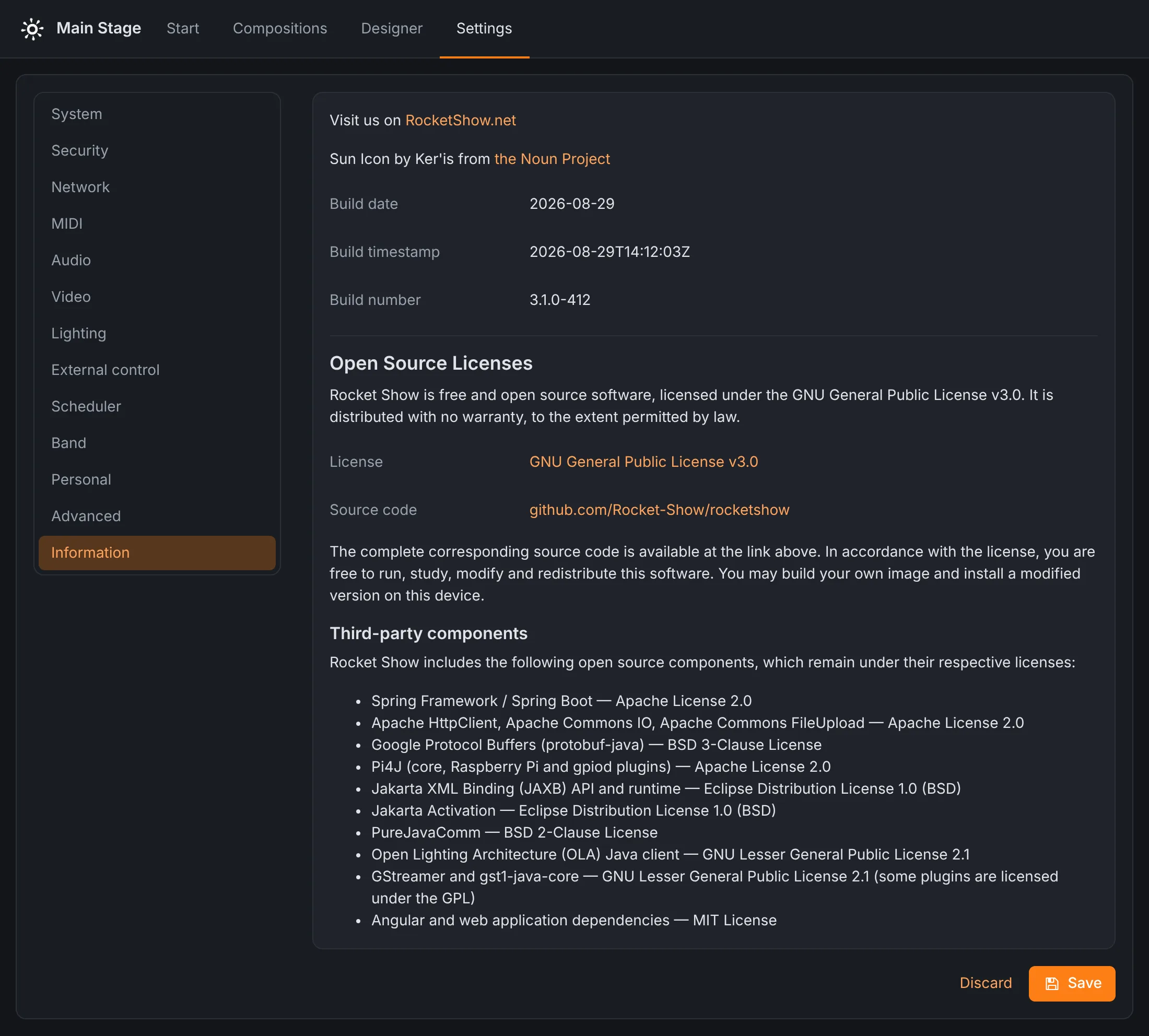
The build date and number of the installed software, and the open-source licences: Rocket Show is free software under the GNU General Public License v3.0, its source code is public, and the third-party components it includes are listed with their licences.
Several devices in one show
One Rocket Show unit can control others: a second box for the video wall backstage, one per stage at a festival, one per room in an exhibition. Set it up like this:
- On the device to be controlled, create an API key and copy it.
- On the controlling device, add it under Settings → Network → Remote devices with its address and that key.
- Tick Synchronize to make it follow the transport: when this device selects, plays, pauses or stops a composition, the remote one does the same with its composition of the same name. Reboot and shutdown are passed on as well. Media files are not copied; put the same compositions on both devices.
Beyond synchronizing, the remote devices can be targeted individually: actions and MIDI controls can run on chosen remote devices, and MIDI files and incoming MIDI can be routed to them.
Triggers, actions and the API
All automation in Rocket Show follows the same pattern: a trigger fires a list of actions.
| Trigger | Set up under |
|---|---|
| A position in a composition | Compositions → Add → Action |
| A MIDI note or program change | Settings → MIDI → Control |
| A digital input (button, sensor, contact) | Settings → External control |
| A time or an interval | Settings → Scheduler (starts a composition) |
| Another Rocket Show unit | Remote devices |
Other systems can control the device over its HTTP interface, the same one the web app uses, authenticated with an API key sent in the X-API-Key header. For example, to start the selected composition:
curl -X POST -H "X-API-Key: <your key>" http://rocketshow.local/api/transport/playThe transport also answers pause, stop, next-composition, previous-composition, set-composition-name?name=… and set-composition-index?index=…. GET /api/system/health reports the device's health without a key, for monitoring systems. An API key runs the show but cannot change the settings, the password or the session; those need a login with the device password.
Updates, backups and maintenance
Updates SPARK
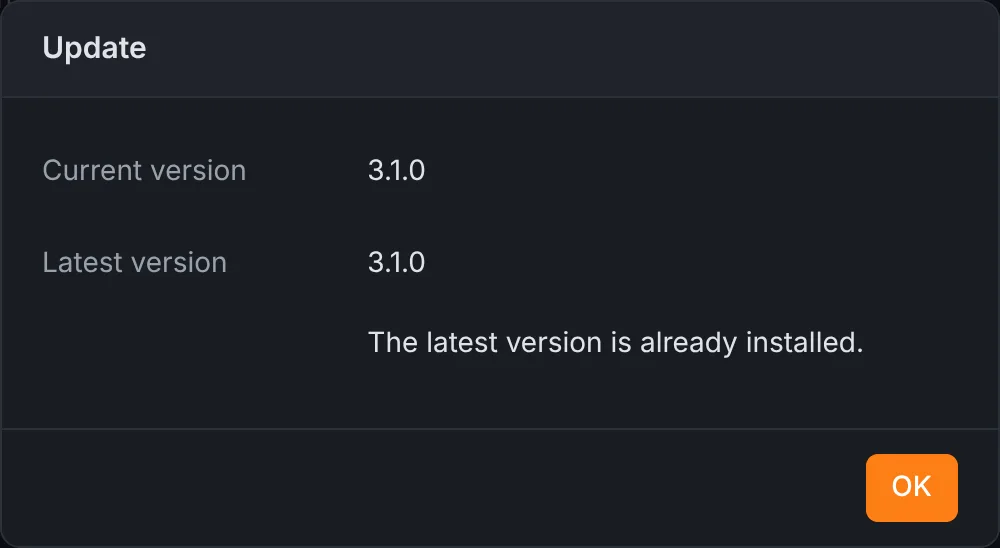
SPARK checks for new versions when you open Settings → System and shows a note when one is available. Search for updates… shows the installed and the latest version and its change notes; Start update downloads and installs it and restarts the device. The device needs internet access. The update installs next to the running system and switches over only when it is complete, so an interrupted update leaves the device on the old version.
On the Community Edition, new versions are installed by flashing a new image.
Backup and restore SPARK
Settings → System → Backup → Download saves everything as one file named rocket-show-backup-<date>.tar.gz. Restore… uploads such a file and puts the device back to that state, for example on a replacement unit. Take a backup before a tour and after every change to the show. While the backup is being created, at least half of the device's storage has to be free.
Factory reset SPARK
Settings → Advanced → Reset to factory defaults erases everything and starts the setup wizard again.
Logs and maintenance mode
Settings → Advanced → Download logs collects the log files. Attach them when you contact support. On SPARK, Enable maintenance mode gives temporary SSH access, see Advanced.
Troubleshooting
- The browser shows “No connection”.
- The device cannot be reached: it is off, still starting, or your phone or computer left its network. Rocket Show reconnects on its own as soon as the device answers again.
rocketshow.localdoes not open.- Some networks and older Android phones do not resolve
.localnames. Use the IP address instead:192.168.4.1on the device's own Wi-Fi, or the address your router shows for the device. - There is no sound.
- Check under Settings → Audio that each audio bus has a device, save and restart. Then check that the composition's audio files are not deactivated and play through the right bus, and that the composition and file volumes are not turned down.
- Audio, video and lights are slightly apart.
- Projectors, screens and some interfaces add delay. Line the outputs up with the global play offsets under Audio, Video and MIDI.
- The lights do not react.
- Check that the universe has an output port under Settings → Lighting, that the fixtures in the designer use that universe and the right addresses and mode, and that the designer composition has exactly the name of the Rocket Show composition. On the Community Edition, check that the right OLA plugin is active and nothing conflicts with it. The lighting console shows whether DMX is leaving the device.
- The audio crackles or drops out. Community Edition
- Raise the ALSA period size or buffer under Audio, and use a powered USB hub for the interfaces.
- The designer lost my changes.
- Unsaved changes are discarded when you leave the Designer page. Save often, and export important projects.
Still stuck? Write to us, and attach the logs.
Reference
Supported file formats
| Kind | File extensions |
|---|---|
| Audio | WAV (.wav, .wave), MP3, AAC, Ogg (.ogg, .oga, .mogg), WMA |
| Video | MP4, MOV, M4V, MKV, AVI, MPEG (.mpg, .mpeg) |
| MIDI | Standard MIDI files (.mid, .midi) |
| Lead sheets | Images, e.g. PNG or JPEG |
| Fixture profiles | Open Fixture Library JSON |
For the most reliable playback, use WAV for audio and H.264 MP4 for video at the resolution of your screen.
Addresses
| Web interface | http://rocketshow.local, or http://192.168.4.1 on the device's own Wi-Fi |
| Device Wi-Fi | Rocket Show (on SPARK with a four-character suffix) |
| Lighting console (OLA) | Port 9090 of the device |
| Health check | GET /api/system/health |
| Online designer | rocketshow.net/designer/app |