
Rocket Show 3.2 came out on 10 November 2026, and 3.3 three days later. Together they are the biggest step for the lighting since the designer was introduced. The online lighting designer has all of it today, and the Community Edition 3.3 is ready to download.
In short: the AI designs presets and scenes for your fixtures from a sentence, and writes the profile of a fixture from its manual. One fixture library at rocketshow.net serves the designer and every device, and gets better with every vote. A device linked to your account uses the AI too. On the Start screen, the scenes play live with GO, a tap tempo and MIDI learn. And the designer learned pixel effects, fans, tracks and much more.
The AI designs the looks
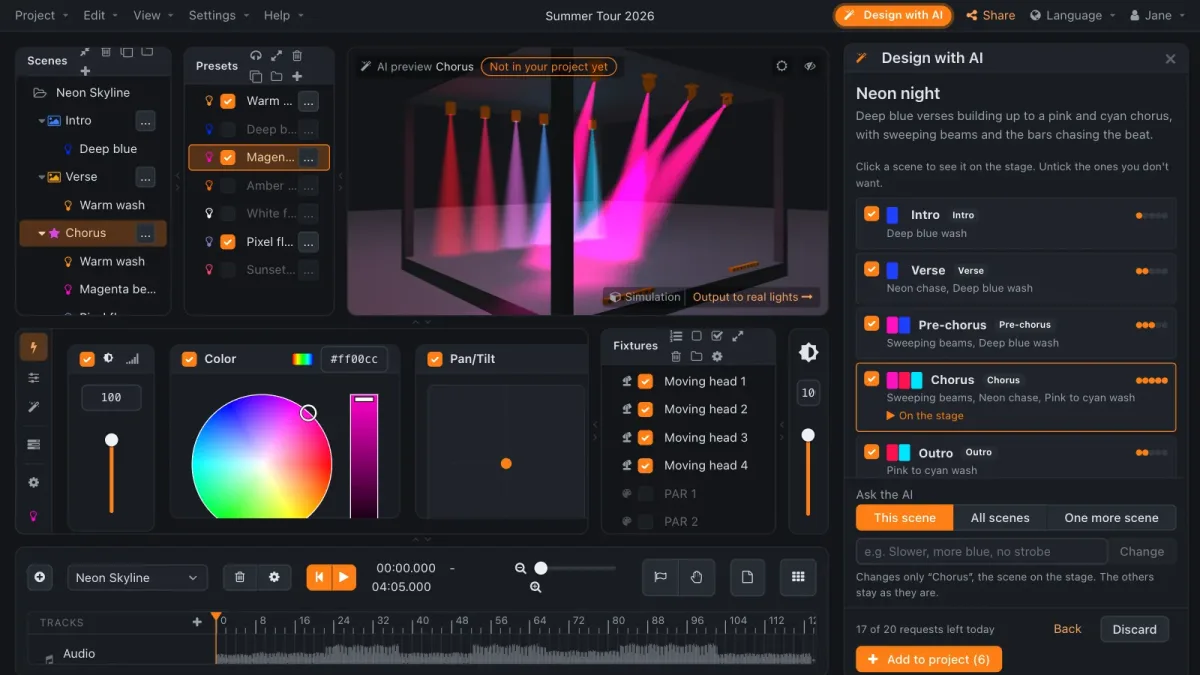
Click Design with AI, describe the show in your own words (“a synthwave song in pink and cyan, building up to a big chorus”) and pick what you need: one look, a song with a scene for each part, or a whole set of 12 to 20 scenes to play by hand. Mood, colours, energy, tempo, how the moving heads move and whether the strobe is welcome are optional.
The AI designs presets and scenes for the fixtures of your project, with fades, fans, movements and pixel effects. Every scene plays on the 3D stage before it becomes part of the project. Not quite right? Ask for a change in a sentence: “slower, more blue, no strobe”, for one scene or all of them. What comes back is an ordinary project: change any value by hand, lay the scenes out on the timeline of the song, and play it on your device. How it works.
Fixture profiles, written from the manual
A light show needs a profile for every fixture: which DMX channel does what, in every mode. When a fixture was not in a library, that meant an evening with the manual and a profile editor. Now you name the manufacturer and the model, give the manual as a PDF or a link, or let the AI search the web for it, and a few minutes later the profile is there.
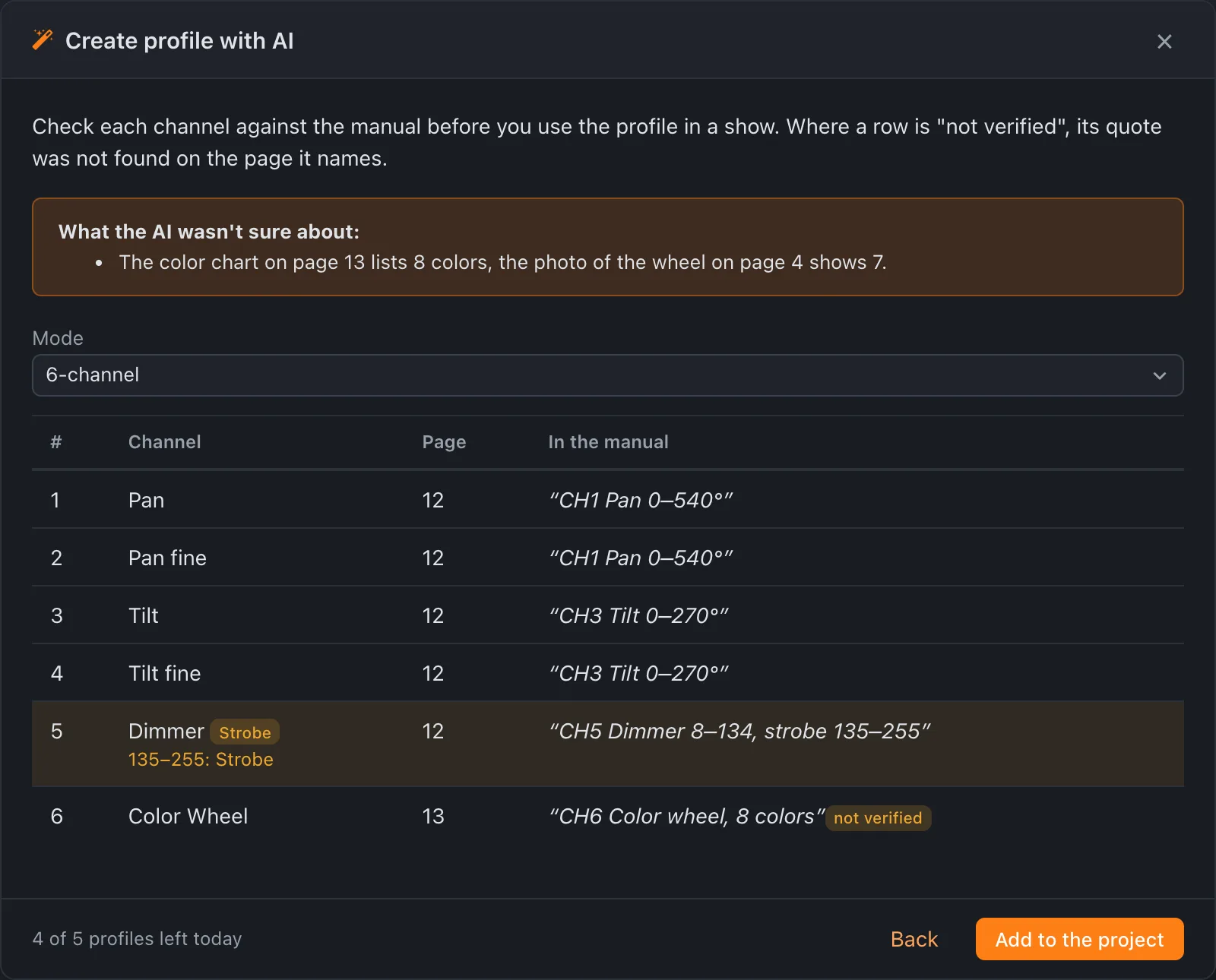
You check it before you use it. The review lists every channel with the page of the manual and the quote it was taken from, and marks a quote it could not find on that page as not verified. If the manual turns out to be of another model, the designer says so. And before it sends a reset or switches a lamp on with a profile made by the AI, it shows you what it is about to send.
A missing profile is one button now: Add missing profile at the end of the list offers the AI first, a profile file second, and the editor of the Open Fixture Library third. Step by step.
One fixture library that learns from every rig
The online designer and every Rocket Show device now share one fixture library at rocketshow.net. It started with the profiles of the Open Fixture Library, more than 650 fixtures of over 130 manufacturers, and it grows with every profile the AI writes: a fixture added for one show is there for the next person who owns it.
- Versions with a history. A fixture can have several versions of its profile. Badges tell where each comes from (Open Fixture Library, AI-generated, from a user) and what users found out: confirmed, problems reported, or not confirmed yet.
- Votes from real rigs. Below the mode of a fixture, say whether it works with your real fixture. The votes rank the versions for everybody.
- Better versions find you. When a project opens, the designer tells you if there is a better version of a profile it uses, and switches to it with a click.
- On every device, offline too. Devices keep a copy of the whole library, update it every day and work with it without internet. New Community Edition images ship with it.
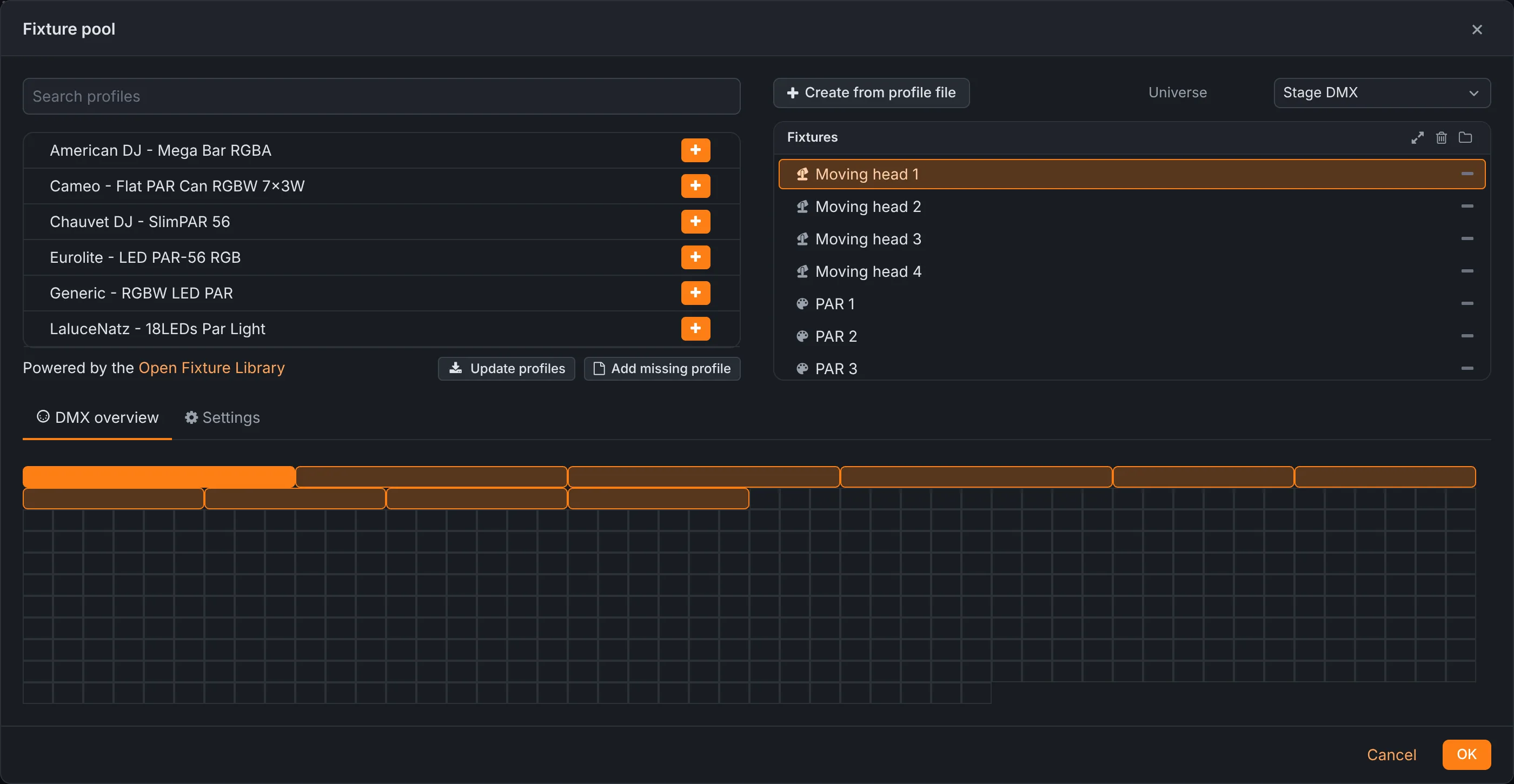
The fixture pool of the online designer also got a new DMX patch: the universe as a map of 32 channels per row with one named block per fixture. Drag a block to readdress it; overlaps are hatched, with a button that moves the fixture to the next gap it fits into. More on the fixture pool.
The AI on your own Rocket Show
Under Settings → Account, a Rocket Show device can be linked with your free account of the online designer. The designer on the device then designs looks and creates profiles with the AI as well, and you vote on profiles right from the rig. The device gets a key of its own for the account; your password is not stored on it. My devices in the online designer lists the devices linked with your account and unlinks them. Linking a device.
Play the light like on a lighting desk
Since 3.2, the Start screen switches between Compositions and Scenes. In Scenes, every scene of the designer is a coloured button, grouped in tabs by folder. Tap one to light it, stack several, hold Flash for a hit, step through a song with GO, and set the speed and the master. The tempo is tapped, set, taken from a MIDI clock or from the song, and the effects stay on the beat. MIDI learn puts the scenes on the pads of any controller.
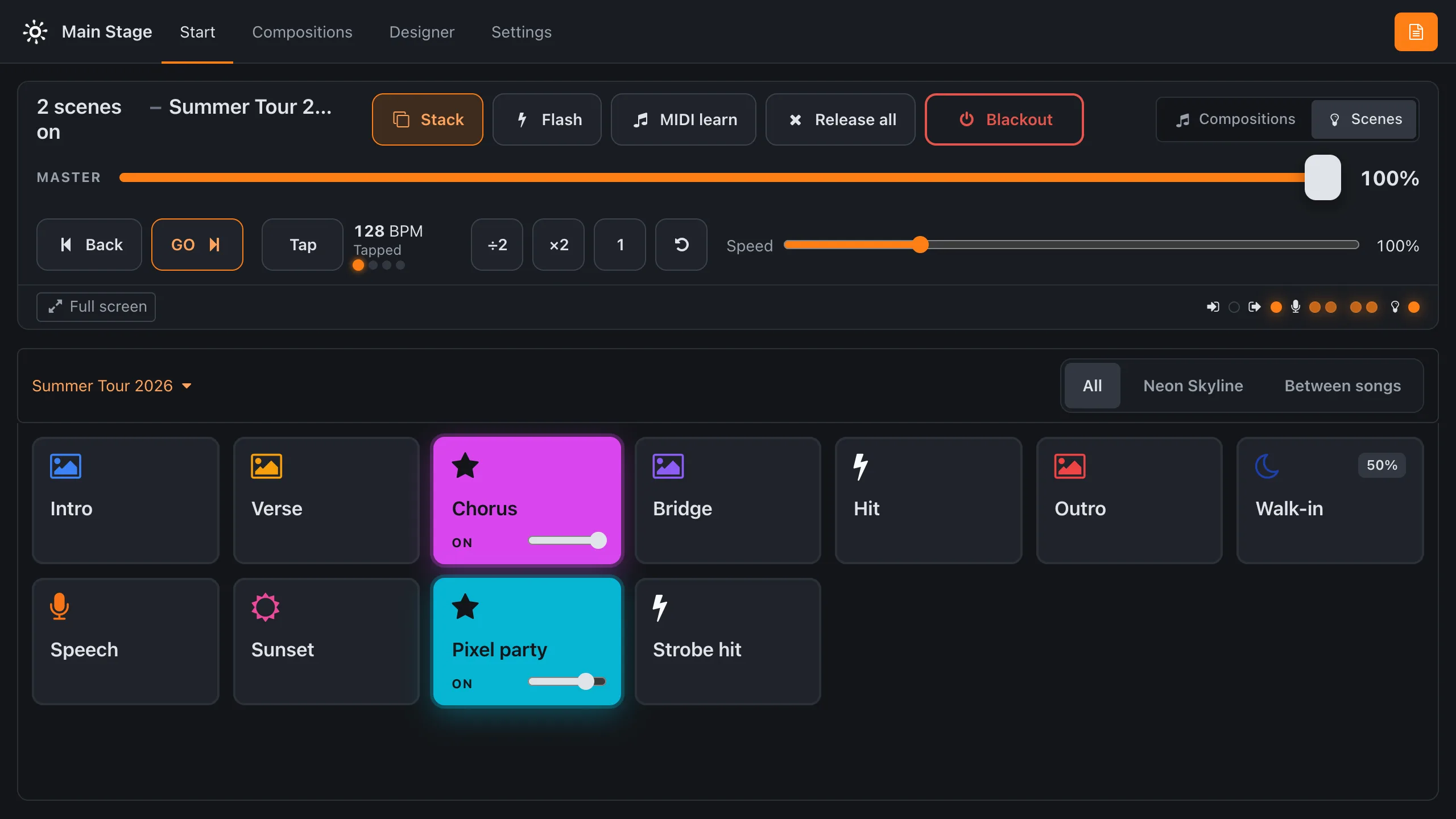
A composition can now stop at a hold point and wait for GO (on the screen, on a foot switch, over MIDI or through the API) while the effects keep running. New actions play, toggle and flash scenes, black out and set the tempo, from a composition, a button, a schedule or a MIDI controller. Scenes, played live.
A designer that plays like the real rig
- Pixel effects for LED bars and matrices: chases, stripes, spirals, rain, fire, text and images, with palettes edited on a gradient, spread across the whole stage and following the audio of the song.
- Fans: any value, colour, position or effect fanned out over the fixtures, in the order of the preset or across the stage, and moving heads fanning in and out.
- Moving heads in degrees, aimed at a spot on the stage, with movements, rotations, gobos, prisms and blades; strobe effects, colour temperature, colour wheels, macros and fog on every model.
- The timeline has tracks, markers and hold points, steps run in beats, and a composition plays without an audio file as long as its scenes.
- DMX channels shows the value on every channel, with a fader to hold one, and the 3D preview draws the beams through the haze, the gobos and the glow of the pixels.
Rocket Show plays all of it exactly as the designer previews it: both are checked against the same test cases, value for value.
On the device
- MIDI timecode in and out: Rocket Show can now follow a timecode as well as send one, per composition or across a whole set. A master can pick songs by MIDI number with program changes, and lighting desks can run the show with MIDI Show Control; DAWs with MIDI Machine Control. See the MIDI guide.
- Self-test and health under Settings → Advanced check the hardware of a unit and show its state at a glance.
- A video setting switches the display to the resolution of each video, for LED processors and screens that are picky about it.
- The browser remembers the device password and logs in again after a reboot. Backups are checked before they are restored, and changed audio settings apply without a restart.
How to get it
- Online designer: open it in your browser, free and with nothing to install. The AI needs a free account.
- Community Edition: download the 3.3 image and flash it onto the SD card of your Raspberry Pi 5, as described in the documentation.
- SPARK: new units ship with 3.3. SPARK units in use get it as an update under Settings → System.
The documentation covers every new feature, with screenshots. Questions, or a fixture the AI got wrong? Write to us.
Questions
- Is the AI in Rocket Show free?
- Yes. Designing looks and creating fixture profiles with the AI need a free account of the online designer. Every account has a number of requests per day; the designer shows how many are left.
- What does the AI need to write a fixture profile?
- The manufacturer and the model of the fixture, and its manual: a PDF with the DMX chart, a link to it, or a web search by the AI. You check the result against the manual, channel by channel, before you use it. See fixture profiles made by AI.
- Where do the fixture profiles come from?
- From the fixture library of Rocket Show at rocketshow.net: the profiles of the Open Fixture Library, more than 650 fixtures of over 130 manufacturers, and every profile made with the AI since. Users vote on the modes they use, which ranks the versions of a profile.
- Does the AI work on my own Rocket Show?
- Yes, once the device is linked to your account under Settings → Account. The device needs internet access for the AI. Playing a show never does.
- How do I get Rocket Show 3.3?
- The online designer has all of it now. For the Community Edition, flash the 3.3 image onto the SD card of your Raspberry Pi 5. New SPARK units ship with 3.3, and SPARK units in use get it as an update.